Edit Your App Design by Chatting: 8 Chat-Based UI Tools (2026)
Mowgli handles product-wide chat edits; v0, Lovable and Figma Make handle selected elements; Google Stitch offers free theme changes.
Choose a tool by edit scope, not by its "AI design" label. Use Mowgli to change every applicable screen and state with one instruction. Use v0, Lovable or Figma Make when you want to select an element in a running app and edit it. Use Google Stitch for free concepts and theme changes, Claude Design for comment-style feedback, and Uizard or Banani for quick wireframes and mockups.
The prompt matters as much as the tool. State the scope, identify the component by role, specify a measurable change and list what must remain unchanged.
How to edit an app design by chatting
Chat-based design editing means requesting UI changes in plain language instead of manually adjusting every pixel. The test is simple: did the tool change the correct target, at the intended scope, without restyling unrelated elements?
First, decide which kind of edit you need:
- An element edit changes one selected component.
- A screen edit changes one view and possibly its loading, empty or error states.
- A theme edit changes shared colors, typography, radius or design tokens.
- A product-wide edit changes every applicable screen and state.
Then structure your prompt in four parts:
- Scope: Name the selected element, screen, theme or all screens.
- Target: Identify a component by role, such as "primary button," rather than visual location.
- Measurable change: Give dimensions, spacing, contrast, hierarchy or behavior.
- Preserve list: State which elements and styles must not change.
For product-wide changes, save, name or bookmark the current version first. Make one change per message, request a list of affected screens, then inspect default, empty, error, loading and other states.
12 chat prompts that produce controlled UI edits
Replace the screen and component names with those from your product. Numbers, roles, exceptions and explicit scope produce more controlled results than general requests such as "make it cleaner."
1. Adjust spacing on one screen
On the Settings screen, increase the gap between form sections to 32px and between fields to 16px. Keep field widths and labels unchanged.
2. Change density across the product
On every screen, make tables more compact: 40px rows, 12px cell padding, 14px text. Don't change cards, forms or navigation.
3. Strengthen visual hierarchy
On the Overview screen, make the monthly spend total the first thing people see: 40px bold, with the budget comparison below it in 14px muted text. Shrink the four KPI cards into one row.
4. Keep one primary action per view
On every screen, keep exactly one filled primary button per view and turn other filled buttons into outline buttons. List the screens you changed.
5. Raise text contrast
Raise text contrast on every screen to at least 4.5:1 against its background, including placeholder and disabled text. Keep the brand blue for primary actions.
WCAG 2.2 sets 4.5:1 as the minimum contrast for normal text.
6. Apply a palette from an image
[attach screenshot] Use the palette from this image: its dark navy for the sidebar, its coral for primary actions only. Keep our typography and layout.
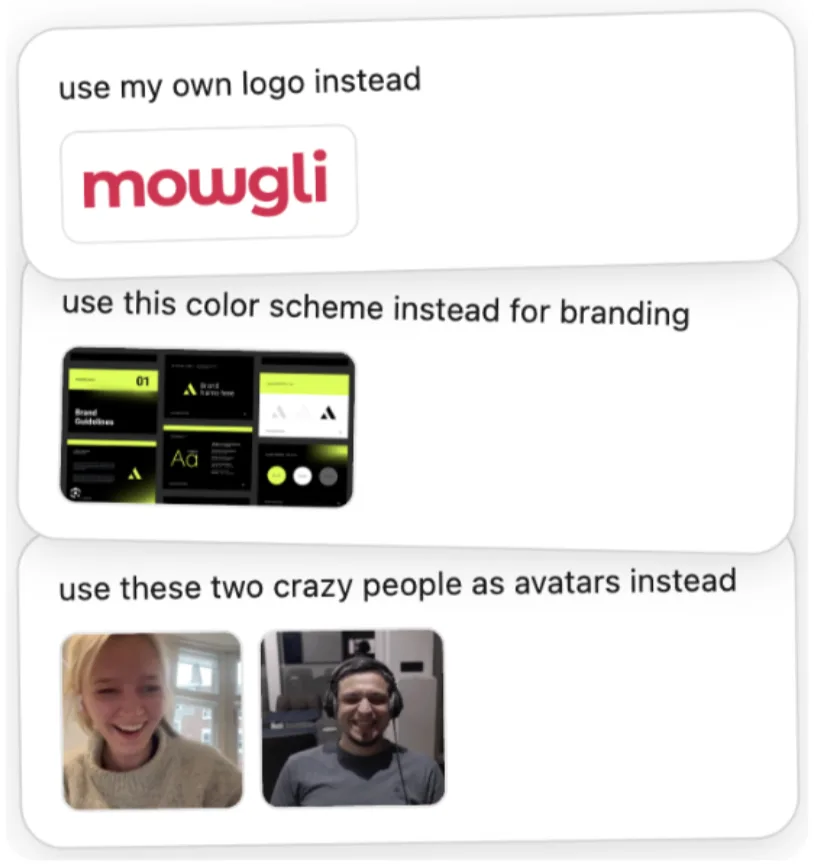
Caption: Image attachments in Mowgli's chat. More in agentic chat and image attachments.
7. Rewrite button copy
Rewrite every button label as a verb plus an object, for example "Create budget" instead of "Submit". Keep labels to 3 words or fewer.
8. Change the mood across a screen and its states
Make the onboarding feel warmer and more personal: a friendlier headline, a small hand-drawn illustration at the top, and softer, rounder habit cards.
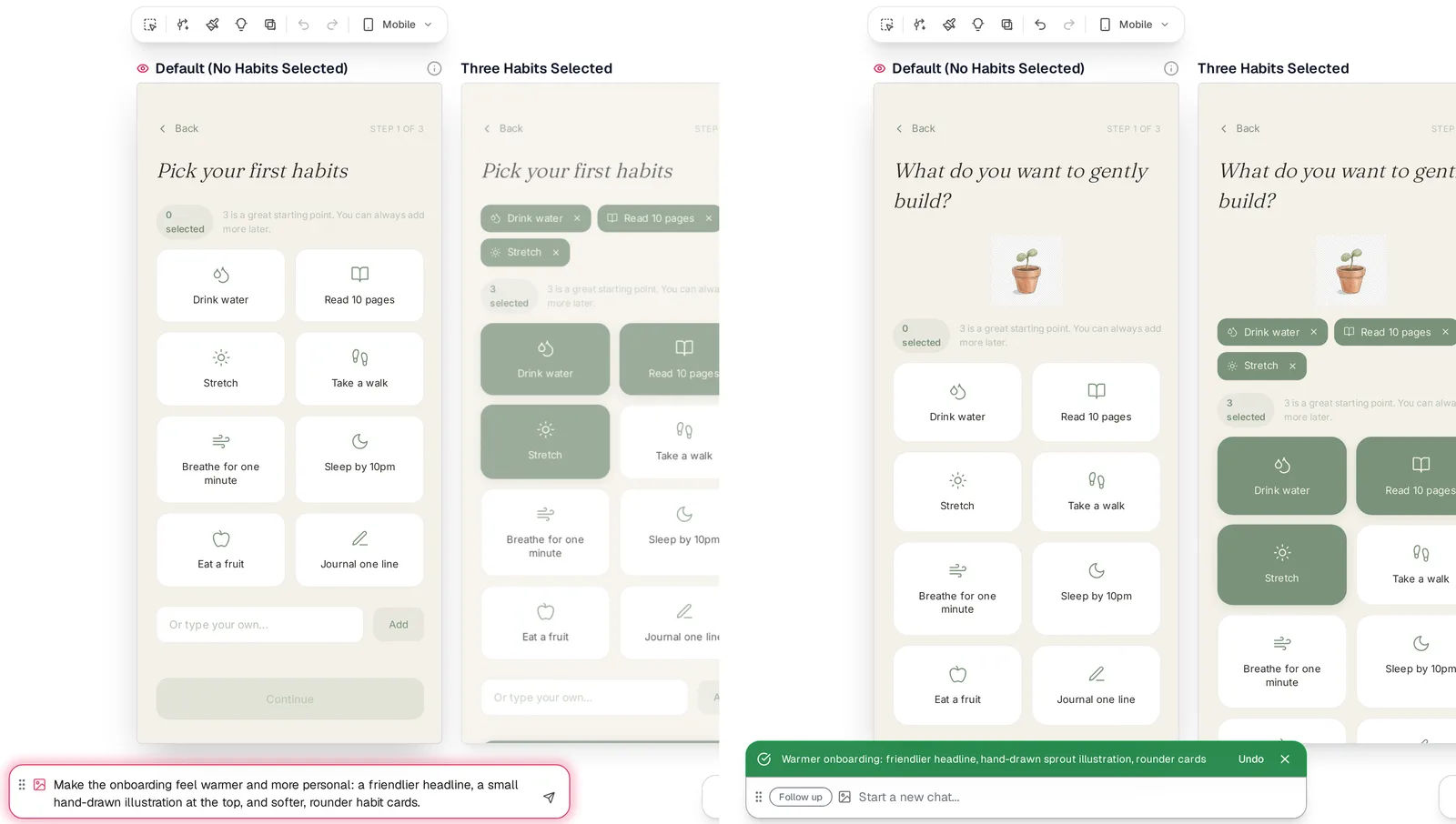
Caption: Prompt 8 in Mowgli's Habit tracker demo: one message updated all three states of the screen.
You can also compare AI tools for exploring visual styles or use style steering before you generate.
Caption: The same edit as a screen recording (middle section sped up 4x).
9. Add missing states
Add three states to the Budgets screen: loading (a skeleton matching the final layout), empty (one "Create budget" action) and error (what failed, plus Retry). Keep the default state unchanged.
Use the empty, error and loading state checklist when reviewing the result.
10. Preserve the old layout as a state
On Recommendations, add a list view with columns for title, owner, monthly savings and status, sorted by savings. Keep the current board as a separate state.
11. Create responsive variants
Create 390px mobile versions of Sign In, Overview and Budgets: single column, a bottom tab bar instead of the sidebar, tables as stacked cards. Keep content and order the same.
12. Edit one selected element
[select the element] Make this a secondary outline button at the same height as the Sign In button above it, with a 1.5px slate border and a medium-weight label. Change nothing else.
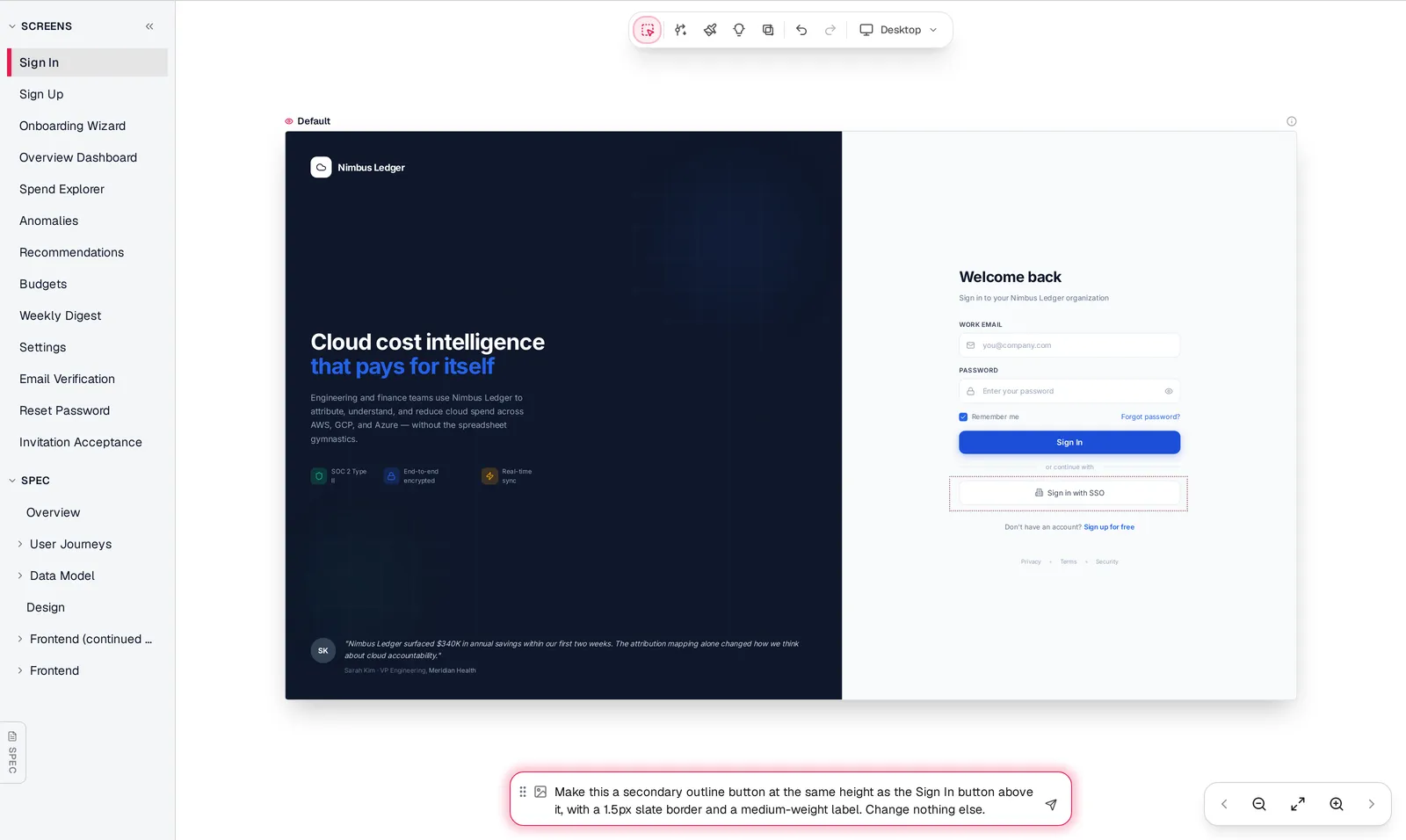
Caption: Prompt 12 in Mowgli: select a region, then type. The edit changed one state.
In v0, Lovable and Figma Make, select the element before prompting. In Stitch, work on one screen per prompt and use Edit Theme for theme changes. In Claude Design, attach an inline comment to the element you want changed.
If you already have a product, start with the workflow for how to redesign your app.
Chat-based UI editing tools compared
The important comparison points are selection, cross-screen propagation, theme controls, version history, image references and pricing. Google recommends that Stitch users "Focus on one screen/component and make one or two adjustments per prompt," which illustrates why screen-level and product-level editing are separate jobs.
Prices are from each vendor's pricing page, October 2026.
| Tool | Best edit scope | Propagation and history | Images | Free allowance | Starting paid price |
|---|---|---|---|---|---|
| Mowgli | Product-wide or selected region | Every screen and state; each edit saved with its prompt | Yes | See pricing below | See pricing below |
| v0 | Selected running-app element | Shared code components and Design Systems 2.0; restorable versions | Yes | $5 one-time credits; 7 messages/day | $30/user/mo |
| Lovable | Selected elements and app code | Code and paid design systems; revert and bookmark | Yes | 5 build credits/day, up to 30/month | $25/month |
| Figma Make | Selected coded prototype elements | App code, Make kits and library styles; named versions | Yes | Starter AI-credit allowance | $16/month yearly |
| Google Stitch | One screen or theme | Edit Theme and DESIGN.md; undo and redo | Yes | Free with daily credit limit | Free |
| Claude Design | Comments and broad canvas changes | Code or file-based design system; no version history yet | Yes | Shared plan usage limits | $17/month yearly |
| Banani | Small or large canvas edits | Design system, theme tokens and changelog versions | Yes | 12 monthly plus 3 daily credits | $12/month yearly |
| Uizard | Selected wireframes and themes | Project themes and chat history | Screenshot style source | 3 AI generations/month | $12/month yearly |
For every screen and state, choose Mowgli. Lovable design systems are the runner-up when the product already uses shared coded components. For running-app element edits, choose v0 Design Mode, followed by Lovable. For a Figma workflow, choose Figma Make, or use Mowgli for Figma import and export.
Google Stitch leads for free concepts and theme changes, with the v0 Free plan as another option. Claude Design fits comment-style feedback, followed by Lovable. Uizard leads for quick wireframes and mockups, with Banani as the alternative.
Best for product-wide chat edits - Mowgli
We make Mowgli.
Mowgli is an AI design tool that designs every screen of an app from a product idea, Figma file or existing codebase. You define the product in a PRD or spec before generating the multi-screen design, including empty, error and loading states.
Use region selection for a local edit. Use chat when one instruction should affect every relevant screen and state. Each edit stays in version history with its prompt. You can also attach logos, palettes and screenshots, or use shortcuts for design variations, suggested improvements and new screen states.
On every screen, make the primary buttons larger and higher-contrast: about 44px tall with more horizontal padding, a 15px semibold label, and a deeper blue fill with white text. Keep secondary, ghost and icon buttons as they are.
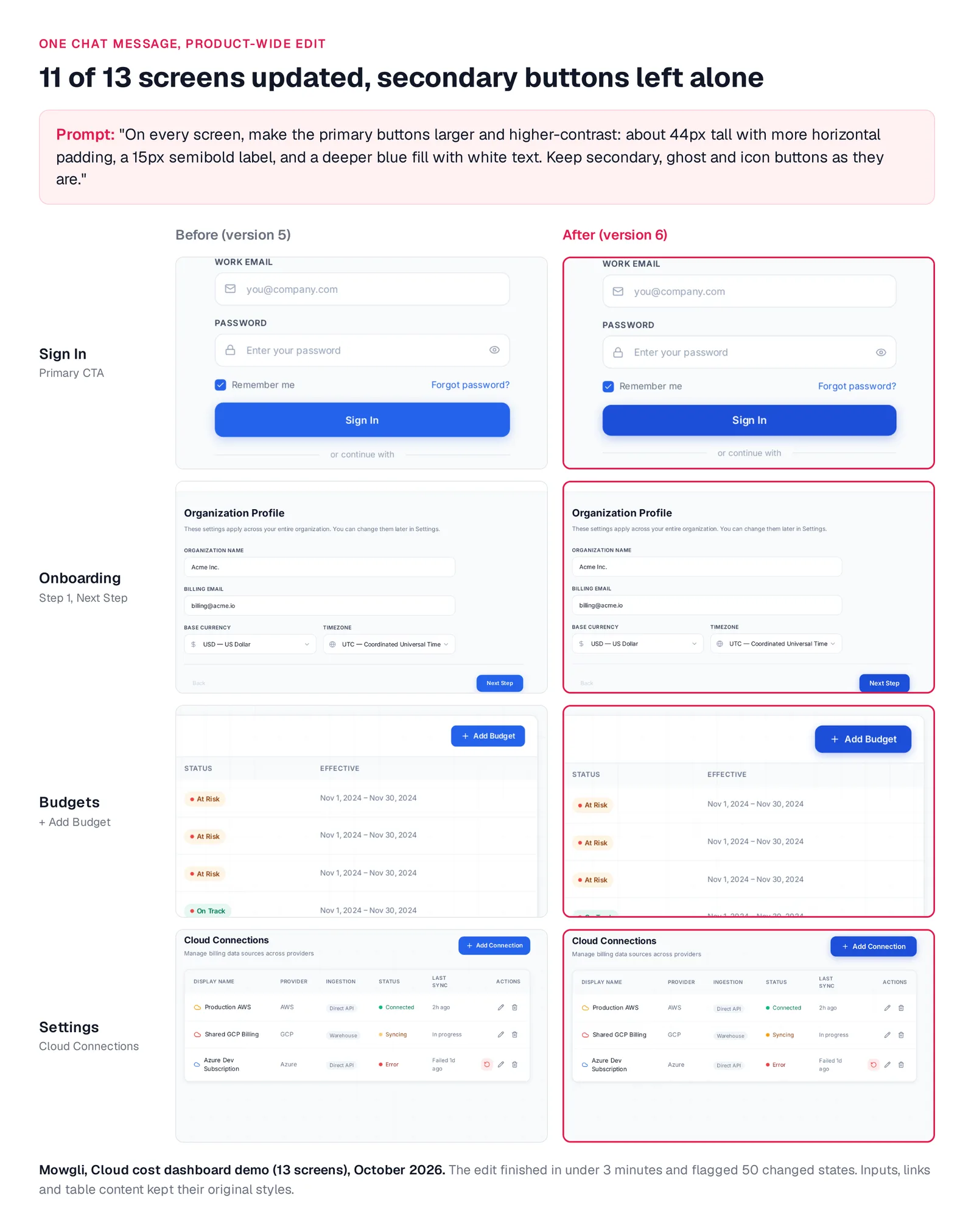
Caption: One chat message, version 5 vs version 6. Mowgli Cloud cost dashboard demo.
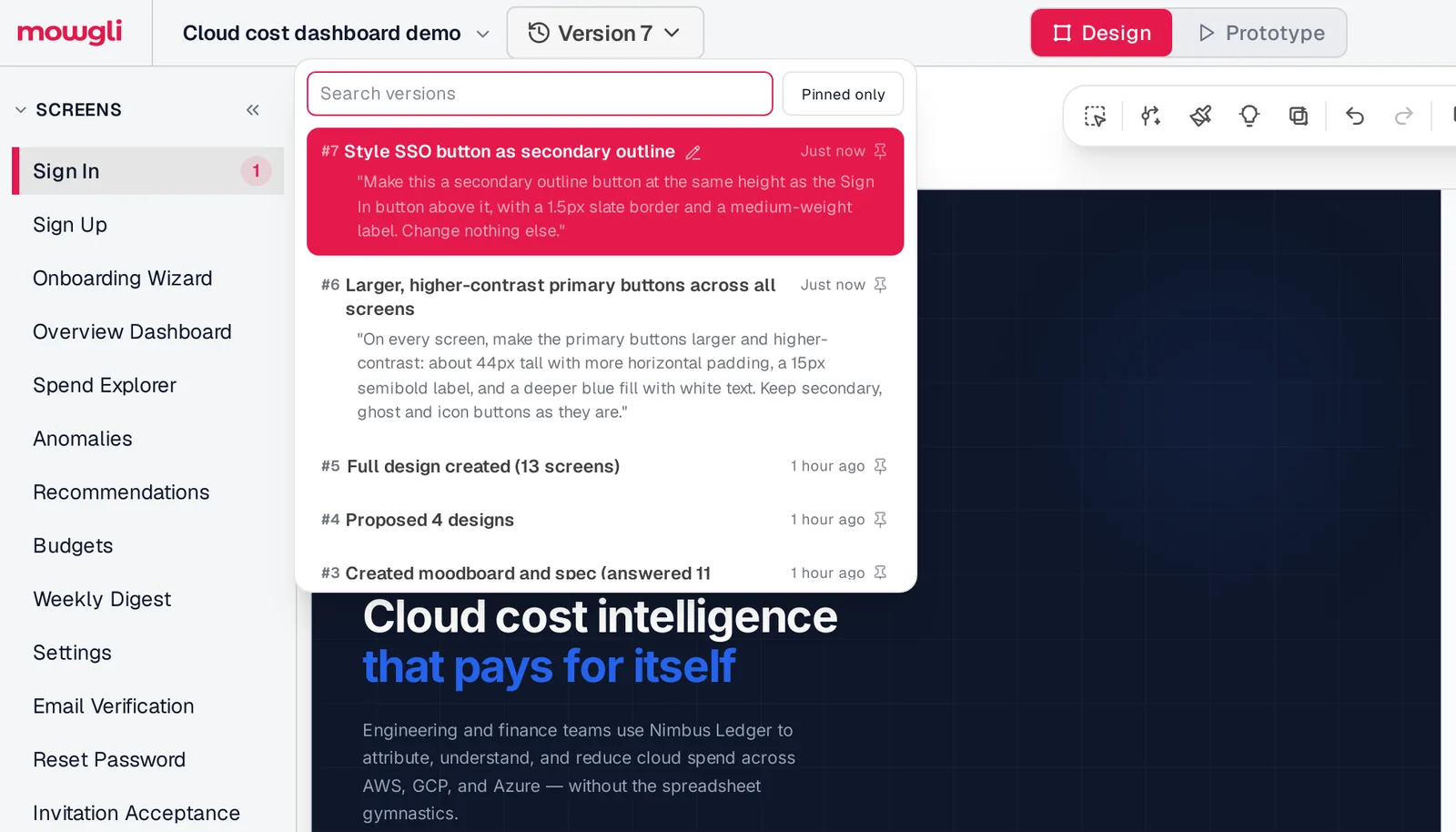
Caption: Every chat edit becomes a searchable version you can pin, rename and restore.
This fits founders, PMs and designers who need to change a whole multi-screen product without repeating the same instruction screen by screen.
Mowgli designs and prototypes; to host and ship, you hand off to a builder or coding agent (Claude Code, Codex, Cursor, Lovable).
Free to start (300 credits); credit packs from $12; plans from $15/mo. You can chat with your design.
Best for point-and-edit changes in a running app
These tools edit working code. Product-wide consistency depends on shared components or tokens, so inspect every instance after changing a reusable element.
v0 - precise element edits with Design Mode
v0 is Vercel's AI app builder. In Design Mode, click an element in the preview, then use the style panel or type an instruction. It is a strong fit for element-by-element polishing in Next.js.
The panel has eight control groups, including typography, spacing and shadows. A typed instruction automatically includes a screenshot of the selected element. Each Apply action creates a diffable, restorable version.
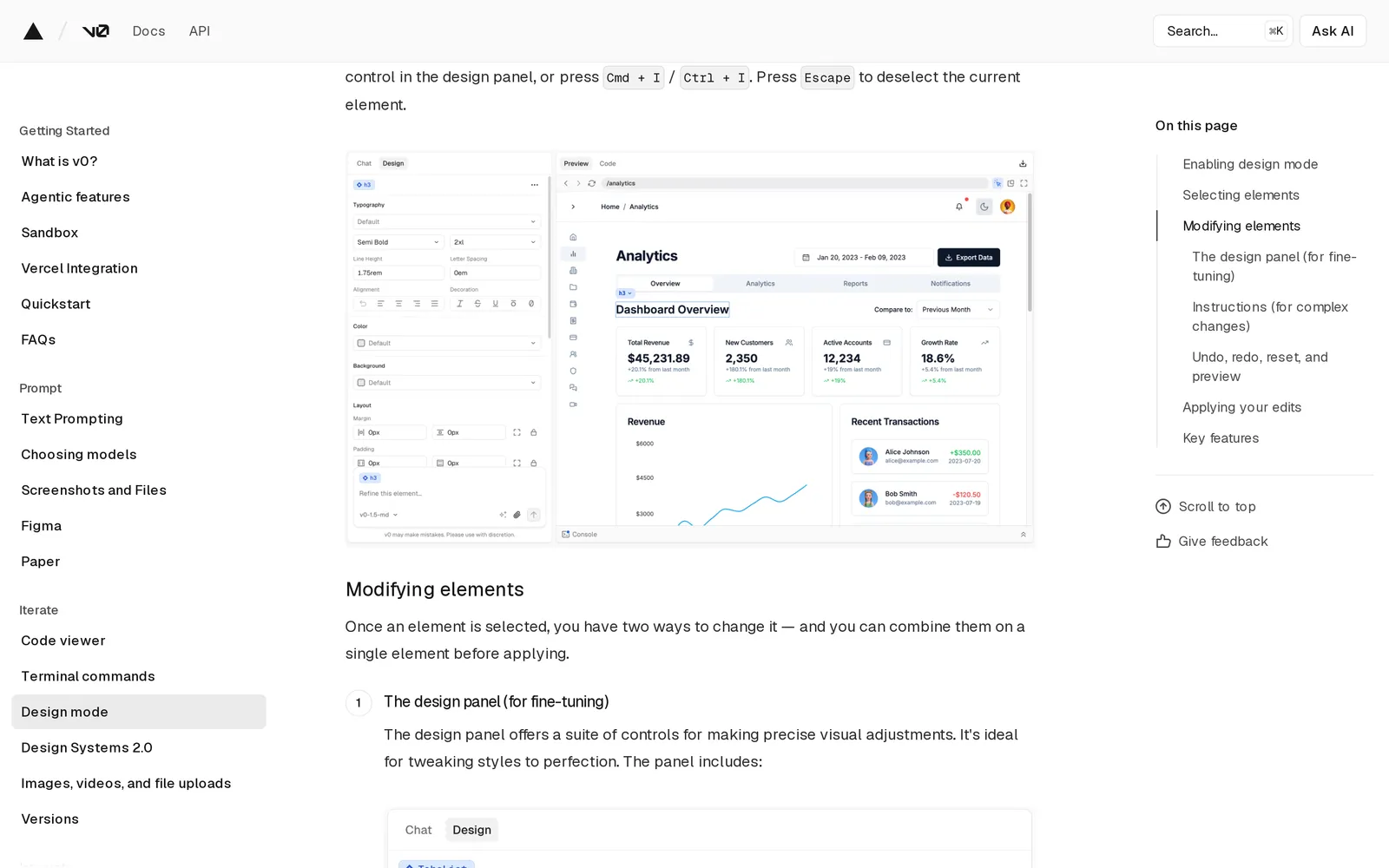
Caption: Source: v0 website (v0.app/docs/design-mode), captured October 2026.
Design Mode works only on the latest chat version and is unavailable in read-only chats or mobile viewports. Tailwind token coverage depends on the project definitions. The Free plan includes $5 in one-time credits for new users and Design Mode. Plus costs $30/user/month.
Lovable - select, draw or edit text in the preview
Lovable builds full-stack web apps from chat. Its preview toolbar replaced the Visual edits panel and supports element selection, drawing and inline text editing.
Cmd or Ctrl-click selects multiple elements for one prompt. Inline text editing includes 100 free edits, renewed over 24 hours. Connected design systems propagate component and token updates, making Lovable suitable for non-developers building and shipping inside the same product.
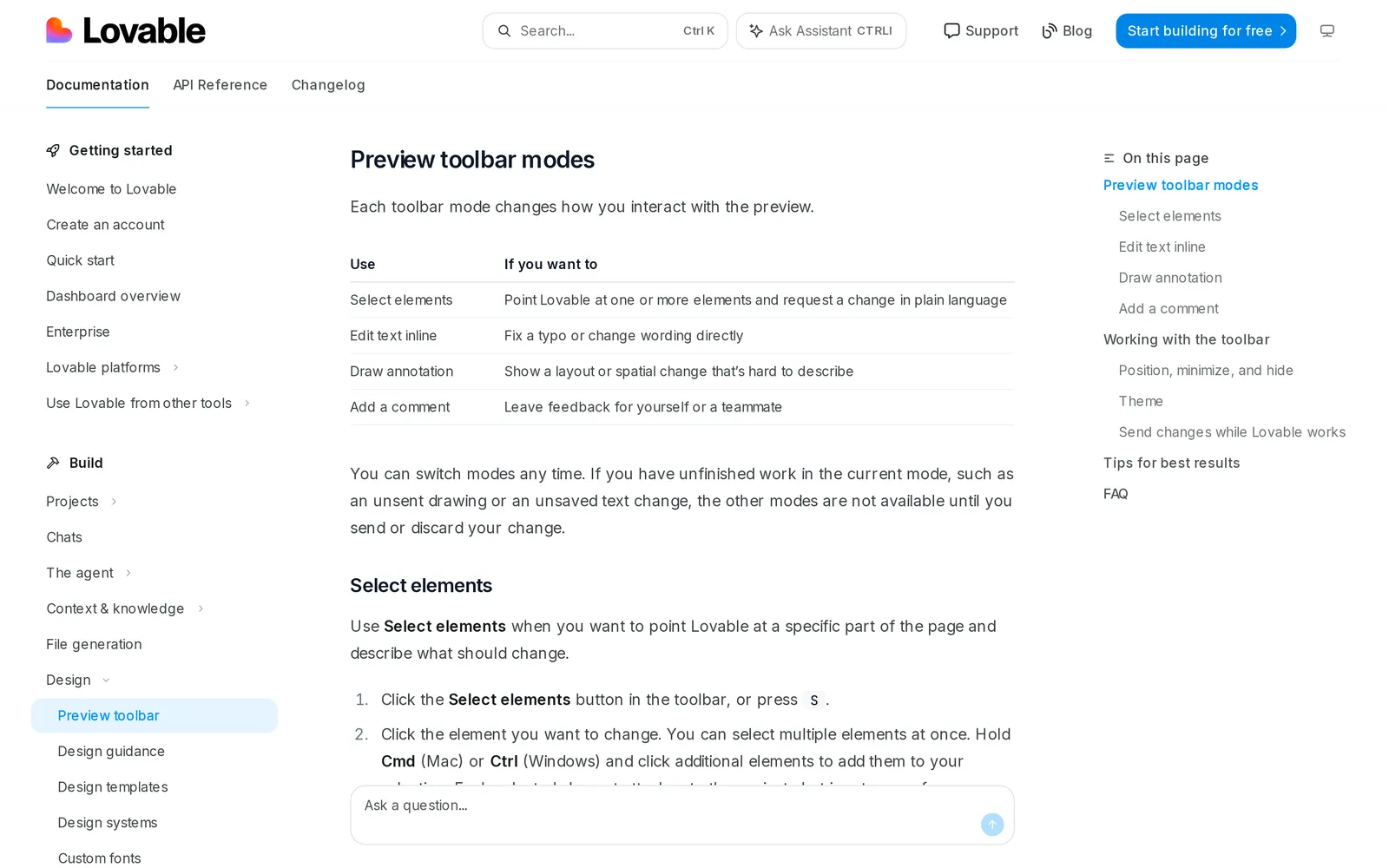
Caption: Source: Lovable website (docs.lovable.dev), captured October 2026.
Select and Draw consume credits. Reverting restores code, not database data, and design systems require a paid plan. Free includes 5 build credits per day, up to 30 per month. Pro costs $25/month with 100 monthly credits.
For visual cleanup, use the 30-minute de-slopification pass.
Figma Make - coded prototypes with Figma-style controls
Figma Make turns prompts and Figma designs into interactive apps. It fits teams already working with Figma libraries.
The Edit tool provides a Figma-style properties panel. Shift-click selects multiple elements, and each prompt can include up to 10 attached files. Make kits combine npm packages, library variables and written guidelines.
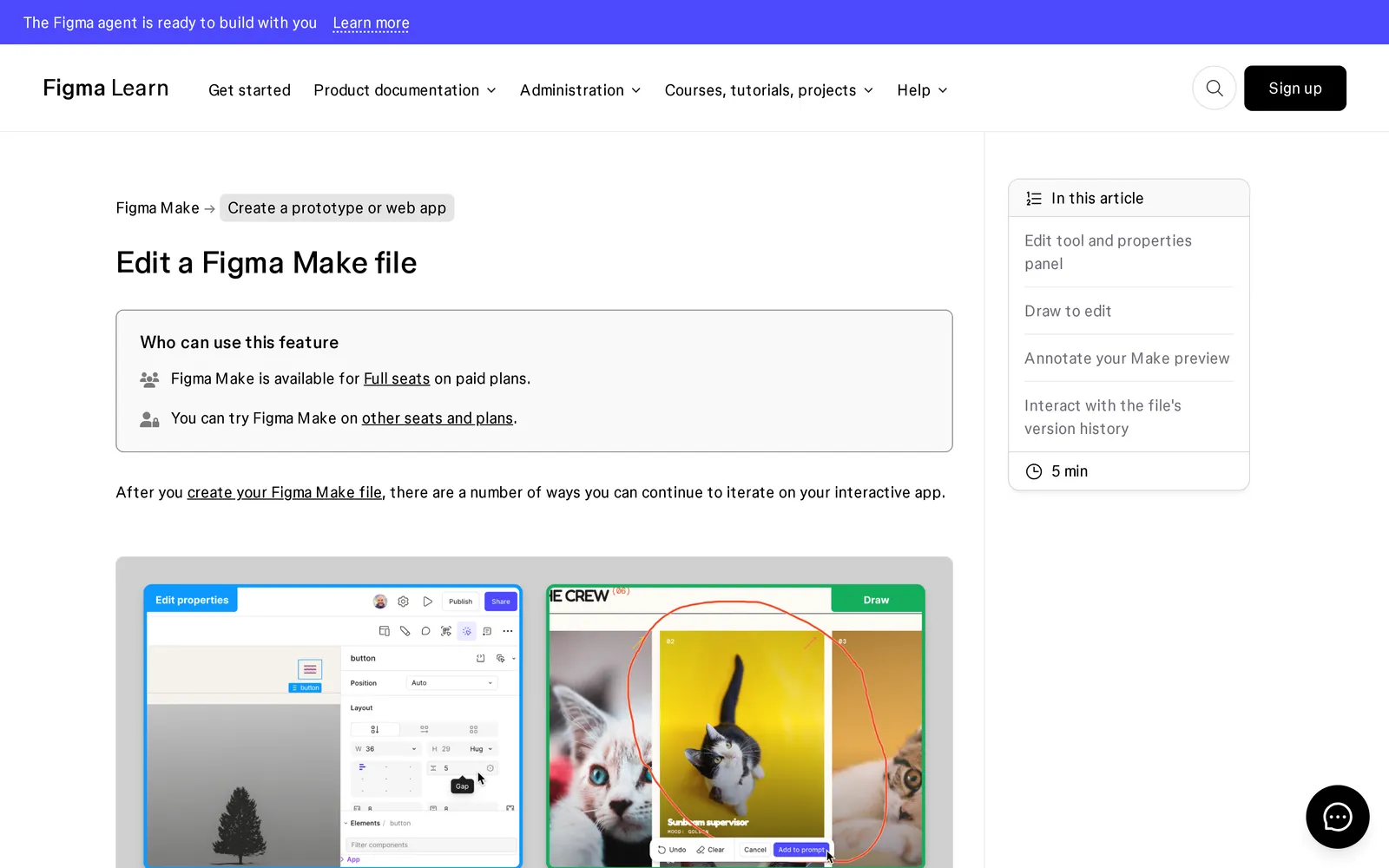
Caption: Source: Figma website (help.figma.com), captured October 2026.
Make is available to Full seats on paid plans. The Edit tool, properties panel and annotations work only in new Make files. Panel and annotation changes consume AI credits.
Starter includes 150 AI credits per day, up to 500 per month. A Professional Full seat costs $16/month yearly or $20 monthly and includes 3,000 AI credits. See the broader five-tool comparison.
Best chat-editing canvases for themes, comments and wireframes
Google Stitch - free concepts and global theme changes
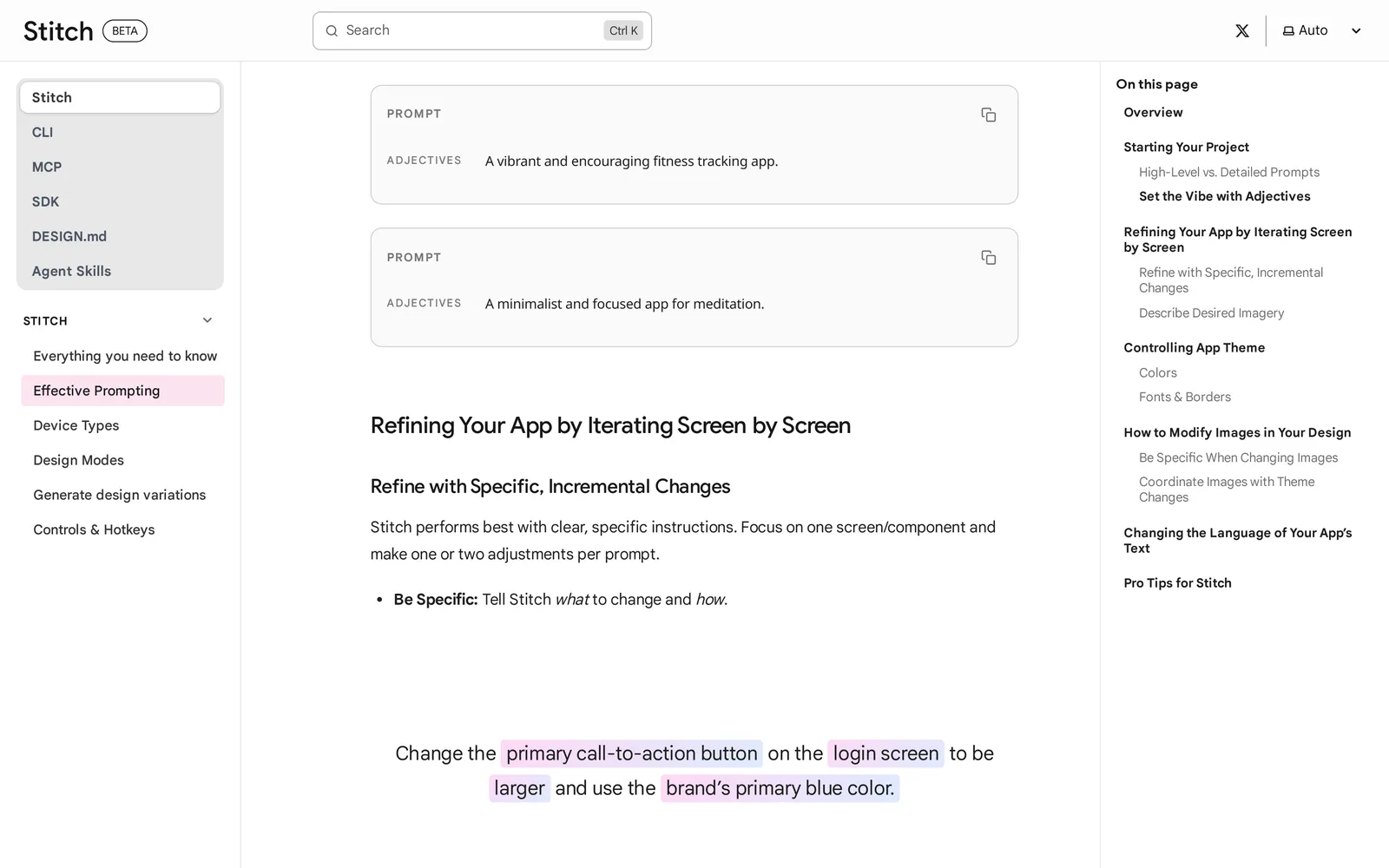
Google Stitch is a Google Labs AI design canvas. Select a screen, choose Edit and enter a chat instruction. Its guide uses this example: "Change the primary call-to-action button on the login screen to be larger and use the brand's primary blue color."
Edit Theme controls light or dark mode, accent color, corner radius and font. Variations can produce one to five options along a Refined-to-Creative range. Stitch also supports voice-mode canvas edits.
Caption: Source: Google Stitch website (stitch.withgoogle.com/docs), captured October 2026.
The documentation recommends one major change per prompt and one screen at a time. Stitch has undo and redo shortcuts, but no documented version-history panel. It exports HTML/CSS and Figma rather than React components.
Stitch is free. Its daily credit limit resets at midnight UTC.
Claude Design - inline comments for local fixes
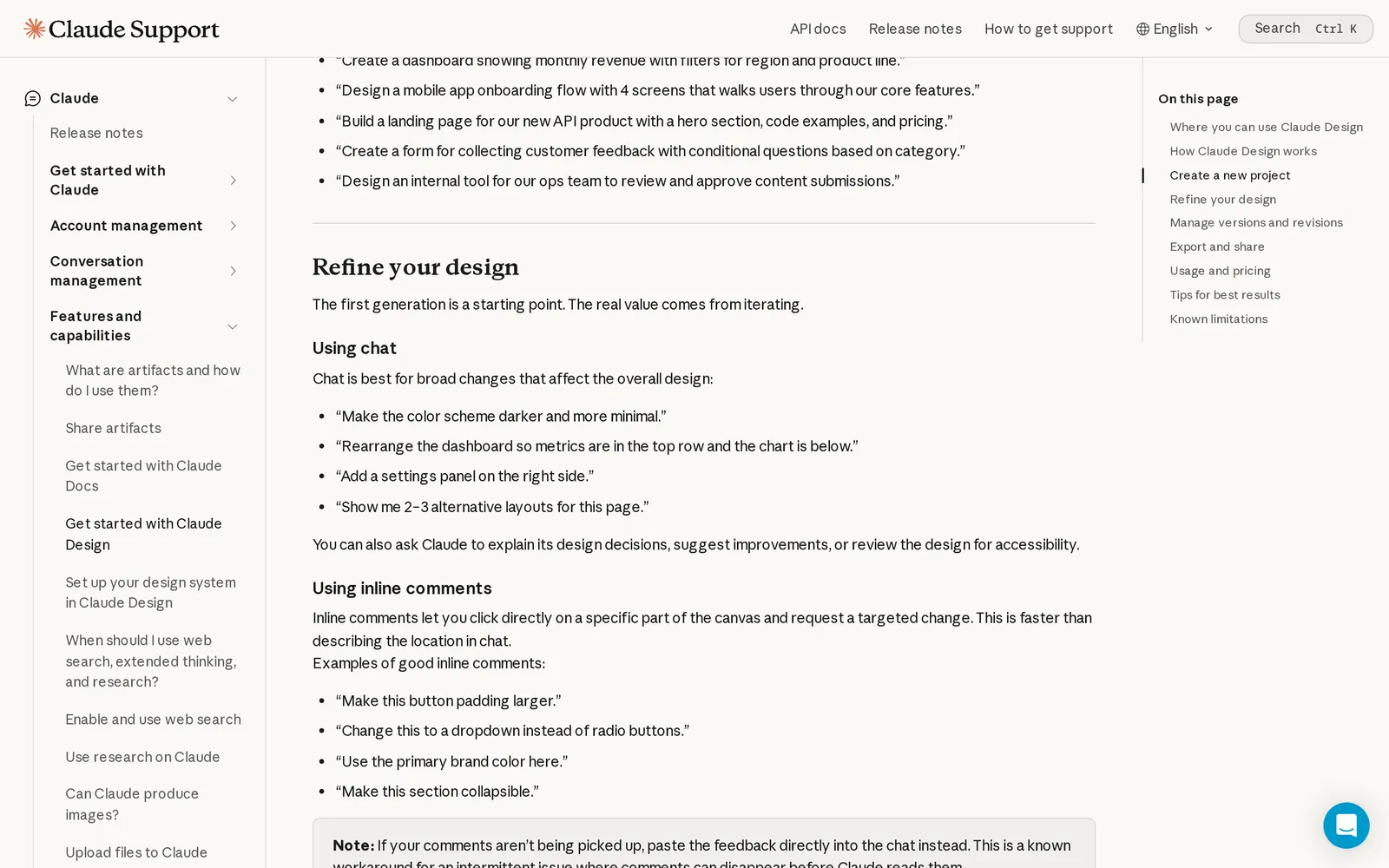
Claude Design is Anthropic's design canvas inside Claude. Use chat for broad changes, inline comments for targeted fixes, and direct canvas controls for dragging, resizing and alignment.
It fits teams that already have a code-based design system and Claude access. You can generate two or three layout alternatives, import a design system from a repository or files, and hand designs to Claude Code rather than passing a screenshot.
Caption: Source: Claude Help Center, captured October 2026.
"Claude Design doesn't have version history yet," so save the project before exploring a new direction. Claude Pro costs $17/month yearly or $20 monthly, with shared plan usage limits.
Banani - bounded small and large edits
Banani is a multi-screen AI UI design canvas for high-fidelity screens and wireframes destined for Figma. Small edits affect relevant parts, while big edits regenerate the design.
It can create up to five variations per prompt and accept multiple image references with separate instructions. Its agent maintains the design system, with color and roundness theme tokens. Design-system import is an Enterprise feature.
Free includes 12 monthly credits plus 3 daily credits. Plus costs $12/month yearly. Pro costs $30/month yearly with unlimited credits. See more Banani alternatives.
Uizard - selection-based wireframe edits
Uizard, now part of Miro, combines Autodesigner chat with a drag-and-drop editor. Select a generated component, modify it, replace it or continue prompting.
It fits non-designers creating quick mockups and wireframes. Generated themes restyle an entire project, while chat history lets you restore earlier components. Prompts are capped at 300 characters.
Free includes 3 AI generations per month. Pro costs $12/month yearly and includes 500 monthly AI generations on Autodesigner 2.0. Business costs $39/month yearly. Read about Uizard's 2026 status and pricing.
Verdict - choose by the scope of the edit
For a whole app, every screen and state, choose Mowgli for product-wide chat edits and restorable versions. Try a product-wide chat edit.
For selected elements in a running Next.js app, use v0 Design Mode. If you are building and shipping inside Lovable, use its preview toolbar and connect a design system for shared tokens.
For a Figma-centered team, use Figma Make with a Make kit. For free concepts and theme-level changes, use Google Stitch. For a code-based design system connected to Claude Code, use Claude Design. For fast wireframes made by non-designers, choose Uizard or Banani.
Whatever you choose, save the current version, make one scoped change per message and inspect every affected state before continuing.
FAQ
Which AI design tool can make a button bigger on every screen?
Mowgli can apply one instruction across every screen and state. Lovable design systems and Figma Make kits can propagate the change when the button is a shared component. Stitch Edit Theme handles global color, font and radius changes rather than arbitrary component changes.
How do I make an AI chat edit apply to all screens?
Begin the prompt with "On every screen." Identify the component by role, specify measurable changes, list exceptions, request the affected-screen list and inspect every state.
What should an AI UI edit prompt include?
Include scope, target, a measurable change and preservation rules. Make one change per message, and select the element first when the tool supports selection.
Can I undo an AI chat design edit?
Yes, Mowgli, v0 and Lovable retain versions. Figma Make supports named, restorable versions. Claude Design has no version history yet, so save before making major changes.
Why does AI change UI elements I did not mention?
The usual cause is missing scope or preservation rules. End with "Change nothing else," list explicit exceptions, or use selected-element mode for a local change.
Is there a free AI tool for editing UI designs by chat?
Yes. Google Stitch is free with a daily credit limit. Mowgli is free to start with 300 credits, while v0, Lovable, Figma Make, Banani and Uizard have the free allowances listed above.
Sources
- v0 Design Mode
- v0 versions
- v0 Design Systems 2.0
- v0 pricing
- Lovable preview toolbar
- Lovable project history
- Lovable design systems
- Lovable pricing
- Edit a Figma Make file
- Figma Make references and controls
- Figma Make kits
- Figma pricing
- Google Stitch prompting
- Google Stitch overview
- Google Stitch variants
- Google Stitch controls
- Google Labs Stitch announcement
- Google Stitch
- Claude Design guide
- Claude pricing
- Banani changelog
- Banani pricing
- Uizard Autodesigner guide
- Uizard Autodesigner
- Uizard pricing
- WCAG 2.2 minimum contrast
- Mowgli chat with your design
- Mowgli style steering and version history
- Mowgli pricing