AI App Missing Empty, Error and Loading States? Fix It
Use this 10-state checklist, screen-state matrix and paste-ready prompts to find and fix missing UI states in AI-generated apps.
AI-generated apps miss empty, error and loading states because most prompts describe only the successful path. Fix this by auditing every screen against ten possible states, recording the results in a screen x state matrix, and requiring a visible frame, story or working preview for every applicable state. Then save the rules in Lovable, Bolt, v0, Cursor or Claude Code and repair one screen per message.
Why AI-generated apps miss empty, error and loading states
Builders implement the conditions named in your prompt or represented by available data. Sample-data previews usually expose the happy path, while slow, empty, offline, forbidden and failed conditions appear during real use.
Lovable's prompting guidance explicitly asks what happens when data is empty, loading or failed. Figma says its agent does not automatically check a design for absent states. This is not a defect unique to one tool. It is a specification and review problem.
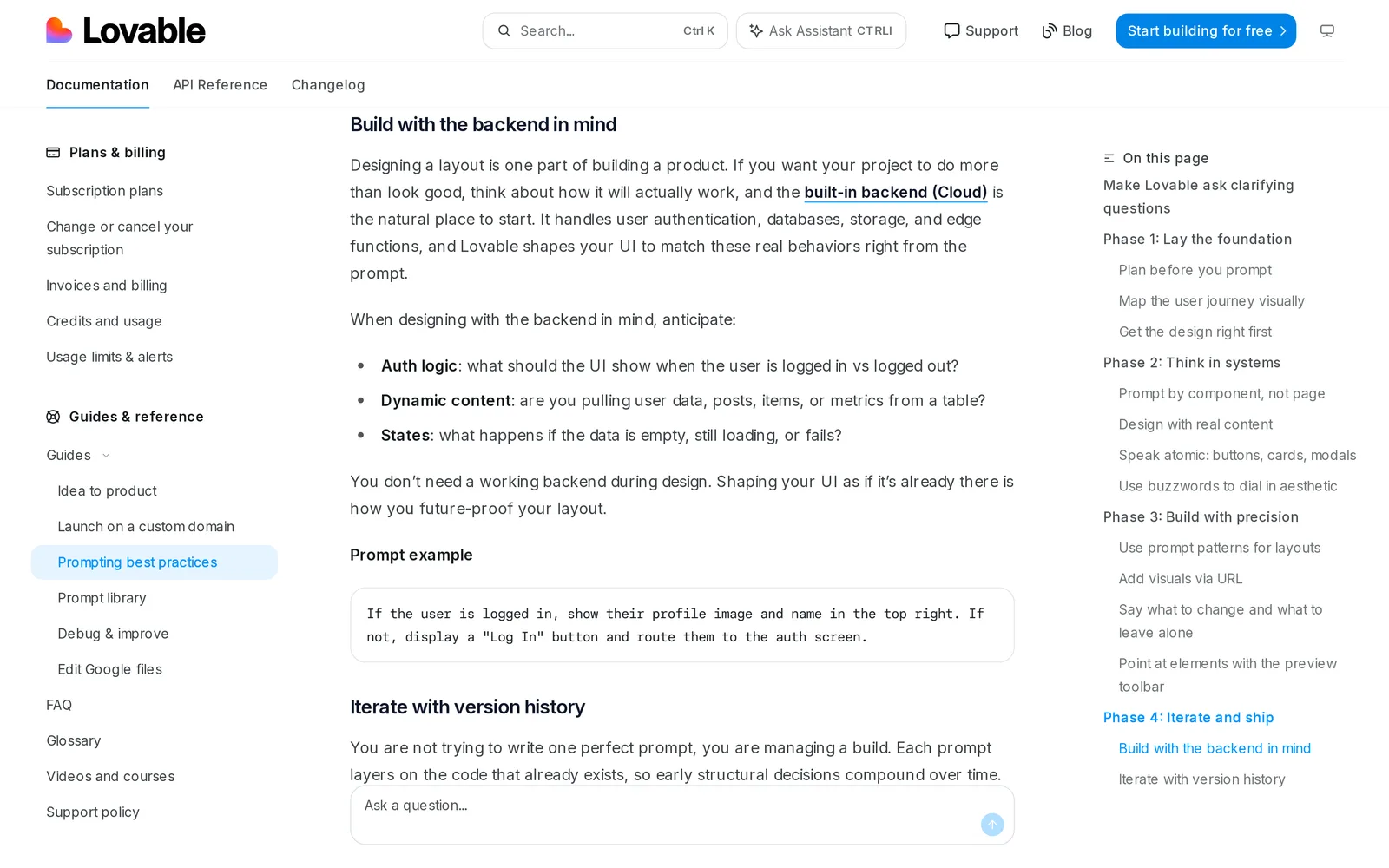
Caption: Lovable's prompting guide puts states on your list. Source: Lovable documentation, captured October 2026.
What a UI state is - and how to measure coverage
A UI state is a distinct version of a screen caused by data, network conditions, permissions or user action. Each version needs an appropriate layout, clear copy and a recovery or next action.
Measure state coverage per screen:
rendered applicable states / all applicable states
Set a 100% target for core screens. Count a state only when a frame, story or working preview exists. A ticket note does not count as designed. Not all ten states apply to every screen.
The 10-state checklist for every screen
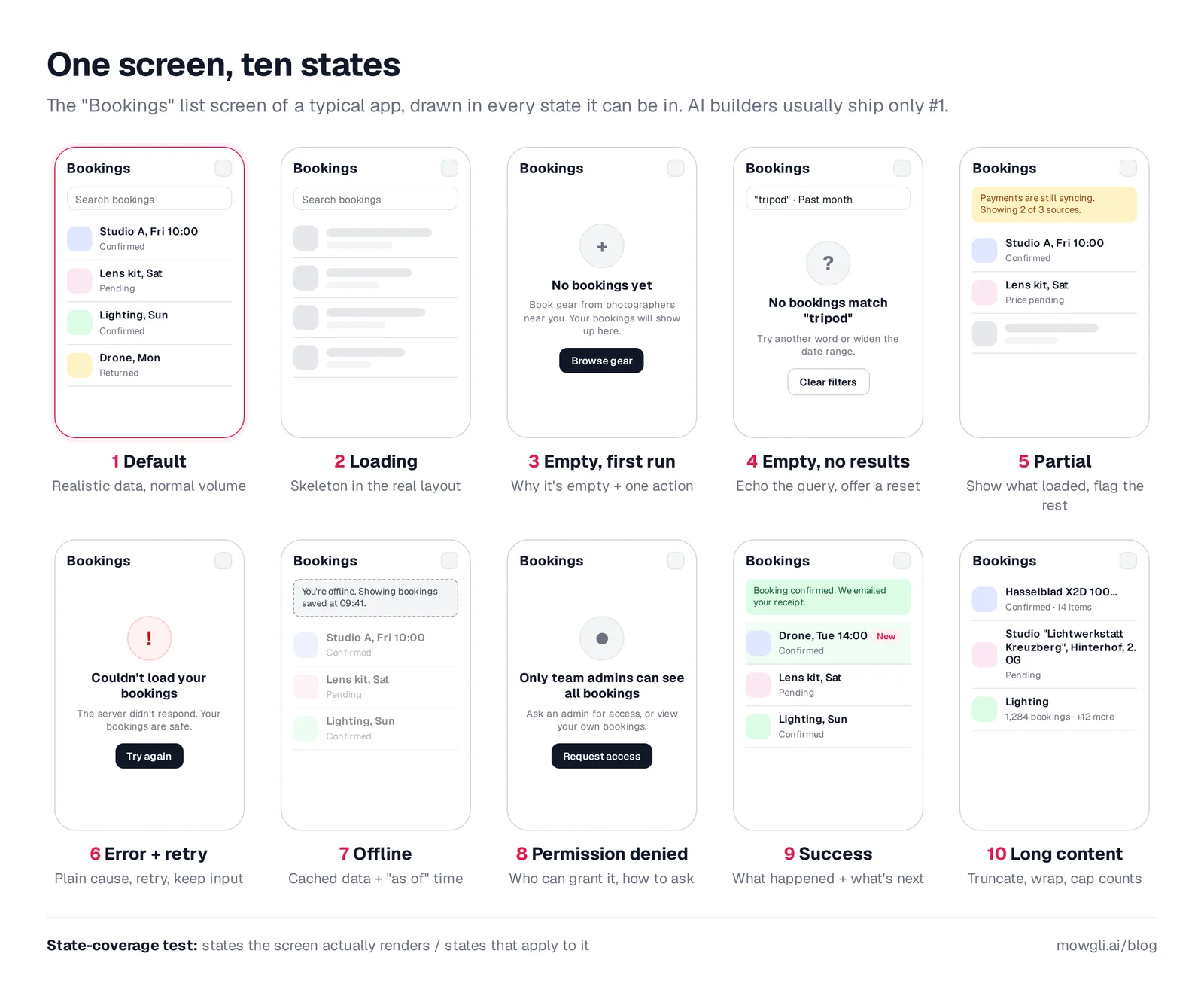
Caption: One screen, ten states. A happy-path prompt describes only the first. Original graphic by Mowgli.
1. Default
Use realistic, normal-volume data. Show every primary action and write real interface copy, not lorem ipsum.
2. Loading
Use a skeleton shaped like the final layout for a full-page load, an inline spinner for one component, and percent-complete progress for a long operation. Reserve the final layout space to prevent movement.
Use no indicator under 1 second, a skeleton or spinner from 2 to 10 seconds, and percent-complete progress beyond 10 seconds.
3. Empty - first run
Explain what will appear, why nothing is there yet and how the feature helps. Provide one primary action such as create, import or connect.
4. Empty - no results
Repeat the search term and active filters. Include "Clear filters" and suggest a useful expansion, such as a wider date range. Do not reuse first-run copy because the cause and remedy differ.
5. Partial
Keep successfully loaded sections visible. Mark sections that are still loading or failed, and explain when remaining data may appear. One failed request should not erase the page.
6. Error and retry
Explain the problem in plain language, say whether entered or saved data remains safe, preserve input and provide Retry or another recovery action. Put form errors beside the relevant field. Avoid "invalid," generic apologies and technical codes.
7. Offline
Show an offline banner and cached or last-synced data with an "as of" time. Mark queued actions as pending and retry automatically after reconnection.
Do not cover available content with a full-page loader. Treat failed requests as the meaningful signal because navigator.onLine is "inherently unreliable."
8. Permission denied
Identify the restricted content or action, explain who can grant access and provide "Request access." For camera, location or push access, link to Settings. Request OS permission after a relevant user action, not on initial load.
9. Success and confirmation
Confirm what happened, point to the result and offer the next step. Include Undo for destructive actions. Ensure assistive technology announces toast-style status messages.
10. Long content and overflow
Define wrapping and truncation, keep full truncated values accessible, cap counts with "99+," and allow for large values and translations. Test a 60-character product name, a seven-figure total and a German label.
Decide which states apply to each screen
Ask seven questions:
- Does the screen fetch data?
- Can its main collection be empty?
- Can users search or filter it?
- Does it combine sources or paginate?
- Is anything restricted by role, plan or OS permission?
- Can users submit, save or delete?
- Will it run on mobile or unreliable connections?
Map network fetching to loading and error, an empty collection to first-run empty, search to no-results empty, multiple sources to partial, gates to permission denied, mutations to success and unreliable connections to offline. Every screen needs default and long-content testing.
A settings form seldom needs partial loading. A dashboard may need nearly every state.
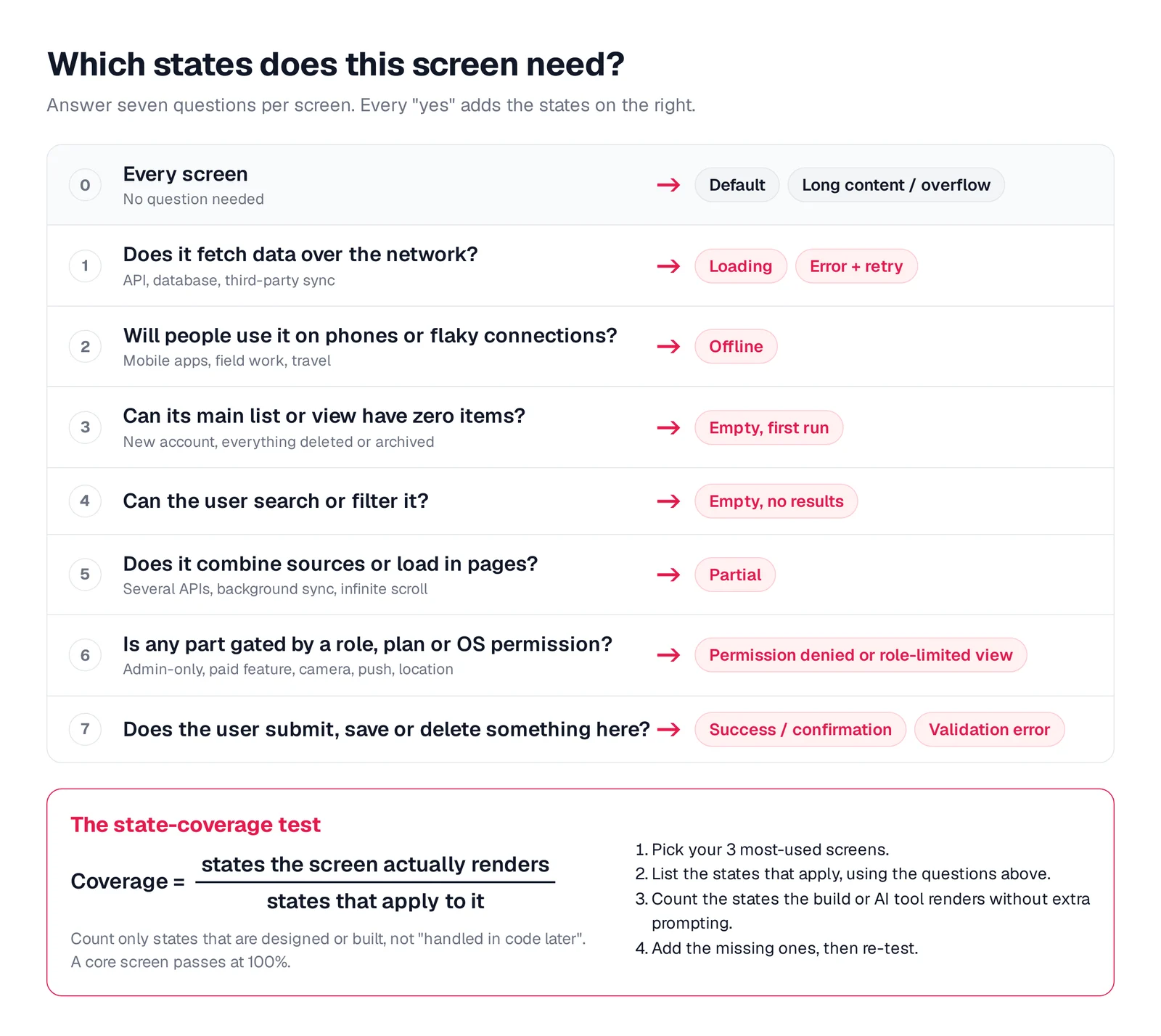
Caption: Seven questions per screen, and how to run the state-coverage test. Original graphic by Mowgli.
Map the whole app in a screen x state matrix
Put one screen in each row, one state in each column and order rows by the user journey. Use designed with a frame or story link, missing when an applicable state is absent, n.a. with a reason when it cannot occur, and global for an app-wide pattern.
Review the matrix by column. Repeated gaps often call for one reusable pattern rather than separate design tasks.
| Screen \ State | Default | Loading | Empty | No results | Partial | Error | Offline | No access | Success | Other |
|---|---|---|---|---|---|---|---|---|---|---|
| Sign in        |         |         |       |            |         |       |         |           |         |       |
| Home           |         |         |       |            |         |       |         |           |         |       |
| Detail         |         |         |       |            |         |       |         |           |         |       |
| Create / edit  |         |         |       |            |         |       |         |           |         |       |
| Settings       |         |         |       |            |         |       |         |           |         |       |
| Missing count  |         |         |       |            |         |       |         |           |         |       |

Cell values: designed (link the frame or story) | missing (applies, nothing drawn)
             n.a. (cannot happen here; give the reason)
             global (covered once by an app-wide pattern, such as one offline banner)
Generate a state contact sheet from Storybook
Storybook exposes index.json, described as "a static index of all the stories." This script selects screen-level stories, classifies their names, captures them with Playwright and produces an HTML contact sheet.
// contact-sheet.mjs: screenshot every screen-level story and lay them out as a screen x state grid.
// Usage: node contact-sheet.mjs <storybook-url> [title-prefix]
import { chromium } from 'playwright';
import fs from 'node:fs';

const SB = process.argv[2] ?? 'http://localhost:6006';
const PREFIX = process.argv[3] ?? 'Pages/';
const COLUMNS = {
  'Default': null,
  'Loading': /loading|skeleton/i,
  'Empty / not found': /empty|missing|not ?found|no ?results/i,
  'Error': /error|fail/i,
  'Offline': /offline/i,
  'No permission': /permission|denied|forbidden|unauthori[sz]ed/i,
};
const columnOf = (name) =>
  Object.keys(COLUMNS).find((c) => COLUMNS[c]?.test(name)) ?? 'Default';

const { entries } = await (await fetch(`${SB}/index.json`)).json();
const stories = Object.values(entries).filter((e) =>
  e.type === 'story' && e.title.startsWith(PREFIX) &&
  e.title.split('/').length === PREFIX.split('/').length); // screens, not their sub-components

fs.mkdirSync('shots', { recursive: true });
const browser = await chromium.launch();
const page = await browser.newPage({ viewport: { width: 1280, height: 800 } });
for (const s of stories) {
  await page.goto(`${SB}/iframe.html?id=${s.id}&viewMode=story`);
  await page.waitForTimeout(2000); // let mocked requests settle (a loading story never does)
  await page.screenshot({ path: `shots/${s.id}.png` });
}
await browser.close();

const screens = [...new Set(stories.map((s) => s.title.slice(PREFIX.length)))];
const cell = (screen, col) => {
  const hits = stories.filter((s) => s.title === PREFIX + screen && columnOf(s.name) === col);
  if (!hits.length) return '<td class="gap">no story</td>';
  const more = hits.length > 1 ? ` +${hits.length - 1} more` : '';
  return `<td><img src="shots/${hits[0].id}.png"><p>${hits[0].name}${more}</p></td>`;
};
const rows = screens.map((sc) =>
  `<tr><th>${sc}</th>${Object.keys(COLUMNS).map((c) => cell(sc, c)).join('')}</tr>`).join('\n');
fs.writeFileSync('contact-sheet.html', `<!doctype html><meta charset="utf-8">
<style>body{font:14px system-ui;margin:24px;width:max-content}table{border-collapse:collapse}
th,td{border:1px solid #e5e7eb;padding:8px;vertical-align:top;text-align:left}
td{width:220px}td img{width:220px;display:block}td p{margin:6px 0 0;color:#6b7280}
td.gap{background:#fff1f2;color:#e51a4c;font-weight:600;text-align:center;vertical-align:middle}</style>
<table><tr><th>Screen \\ State</th>${Object.keys(COLUMNS).map((c) => `<th>${c}</th>`).join('')}</tr>
${rows}</table>`);
console.log(`${screens.length} screens, ${stories.length} stories -> contact-sheet.html`);
Run npm i playwright, then node contact-sheet.mjs https://your-storybook-url 'Pages/'.
For the Mealdrop public Storybook, the output contains 6 pages x 6 states, 12 screenshot cells and 24 "no story" cells. Red cells prompt review; they are not automatically defects.
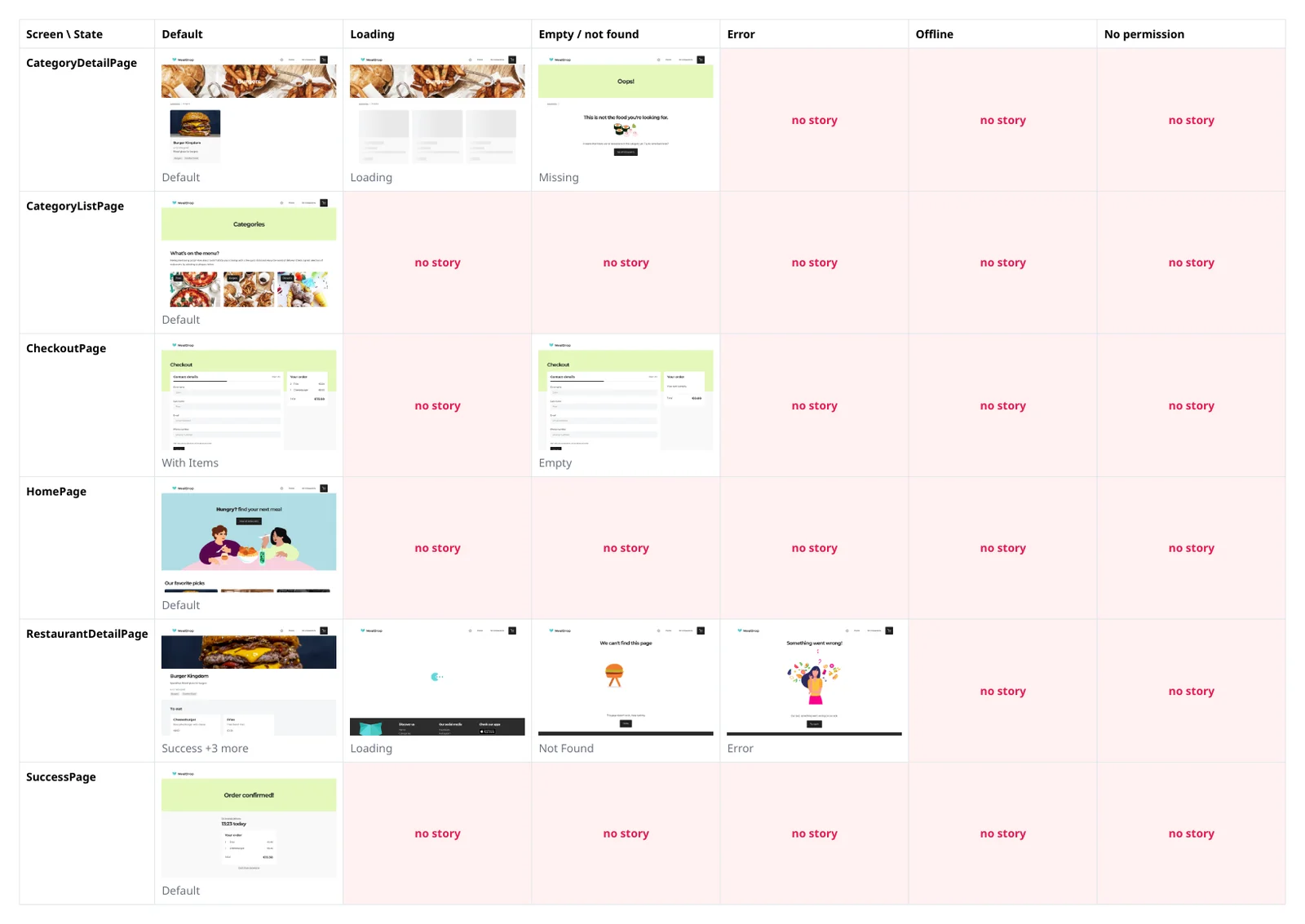
Caption: Script output for Mealdrop's public Storybook, run October 2026. Red cells have no story.
Add the missing states with three prompts
Save persistent rules once, audit without editing, then fix one screen per message. Keep each change small enough to review.
Step 1 - save the rules
UI STATE RULES (apply to every screen and every data-fetching component)
For each screen, design and build every state that applies:
1. Default: realistic data at normal volume. No lorem ipsum.
2. Loading: skeleton matching the final layout for full-page loads; inline spinner
   for single components; progress with an estimate for jobs over 10 seconds.
   No layout shift when data arrives.
3. Empty, first run: what will appear here, why it is empty, one primary action.
4. Empty, no results: repeat the query and filters, offer "Clear filters".
   Never reuse the first-run empty state.
5. Partial: render what loaded, mark sections still loading or failed.
   One failed request must not blank the page.
6. Error: plain-language cause, whether data is safe, a Retry action, user input
   preserved. Form errors inline next to the field, saying how to fix it.
7. Offline: banner, last-synced data with an "as of" time, queued actions marked
   pending, auto-retry on reconnect.
8. Permission denied: what is restricted, who can grant it, a request-access or
   Settings link. Never request OS permissions on page load.
9. Success: what happened, where to find it, next step; Undo for destructive actions.
10. Long content: handle the longest realistic names, numbers and translations;
    truncate with the full value available; cap counts (99+).
In development, every state must be reachable with a ?state= URL parameter.
At the end of every change, list the states you built for each screen touched.
Step 2 - audit before changing code
Audit this app for missing UI states. Do not change any code yet.
1. List every screen and route.
2. For each screen answer: does it fetch data? can its main list be empty? can it
   be searched or filtered? does it combine sources or paginate? is anything gated
   by role, plan or OS permission? does the user submit, save or delete here?
   will it be used on mobile or flaky connections?
3. Output a table: screen | states that apply | states that exist today | missing.
   Use these state names: default, loading, empty-first-run, empty-no-results,
   partial, error, offline, permission-denied, success, long-content.
4. Give each screen a state-coverage score (existing / applicable).
Then stop and wait for me to choose which screens to fix first.
Step 3 - repair one screen
Add the missing states to the Bookings screen: loading (skeleton matching the
layout), empty-first-run, empty-no-results, and error with retry. Follow the UI
state rules. Reuse the components, spacing and colors of the default state.
Wire each state to the real condition that triggers it, add the ?state= preview
switch, and list the states you added.
Where to save the rules in Lovable, Bolt, v0, Cursor and Claude Code
For Lovable, use Project settings -> Knowledge. Knowledge accepts 10,000 characters. Run the audit in Plan mode, or prepare a design-first Lovable handoff.
For Bolt, use Project settings -> Knowledge or a root-level agents.md.
For v0, select Prompt bar + -> Instructions -> New Instruction and title it "State coverage."
Build the BookingsList component with a single `state` prop:
"default" | "loading" | "empty" | "no-results" | "partial" | "error" |
"offline" | "forbidden". Render each state per the State coverage instruction,
and add a preview page that shows all eight side by side.
For Cursor, save this as .cursor/rules/ui-states.mdc. The glob attaches the rule when matching files enter context.
---
description: UI state coverage rules for screens and data-fetching components
globs: src/**/*.tsx
alwaysApply: false
---
(paste the UI STATE RULES here)
For Claude Code, save this as .claude/rules/ui-states.md and scope it with paths. See the Claude Code UI design workflow.
---
paths:
  - "src/**/*.tsx"
---
(paste the UI STATE RULES here)
Make every state visible before merging
Invisible states are easily omitted from review. Ask Claude Code, Codex, Cursor or another coding agent to give each view one state prop, map runtime conditions to it and build a labelled development-only gallery that is excluded from production.
Refactor each screen so its view component takes a single `state` prop and the
data hook maps real conditions (isLoading, error, empty array, 403, offline) to it.
Then add a dev-only /states page that renders every screen in every state in a grid,
labelled "Screen / State". Exclude /states from production builds.
Design every screen and state together with Mowgli
We make Mowgli.
It fits best when a product is not built yet or an existing app needs a coordinated redesign across all screens and states. Mowgli starts with a guided questionnaire, writes a product spec with user journeys and a data model, then generates the multi-screen design and implied states together. The spec stays synchronized with the design.
Every screen and state appears on an infinite canvas for chat iteration and click-through prototyping. The habit-tracker demo produced 12 screens and 46 states from one prompt. The cloud-cost Overview includes default, loading skeleton, no-cloud-connections empty, 67%-complete sync partial, team-lead and over-budget variants.
Each screen exports as a React + Tailwind component with one state prop switching variants. Figma export is also available. Explore AI design generation, app screen generation or whole-product redesign.
Mowgli has an MCP server, CLI and agent skill, so Claude Code, Cursor and Codex can read every screen, its states and the product spec, and push code changes back into the design. See the Mowgli MCP workflow.
Mowgli designs and prototypes; to host and ship, you hand off to a builder or coding agent (Claude Code, Codex, Cursor, Lovable).
Free to start (300 credits); credit packs from $12; plans from $15/mo.
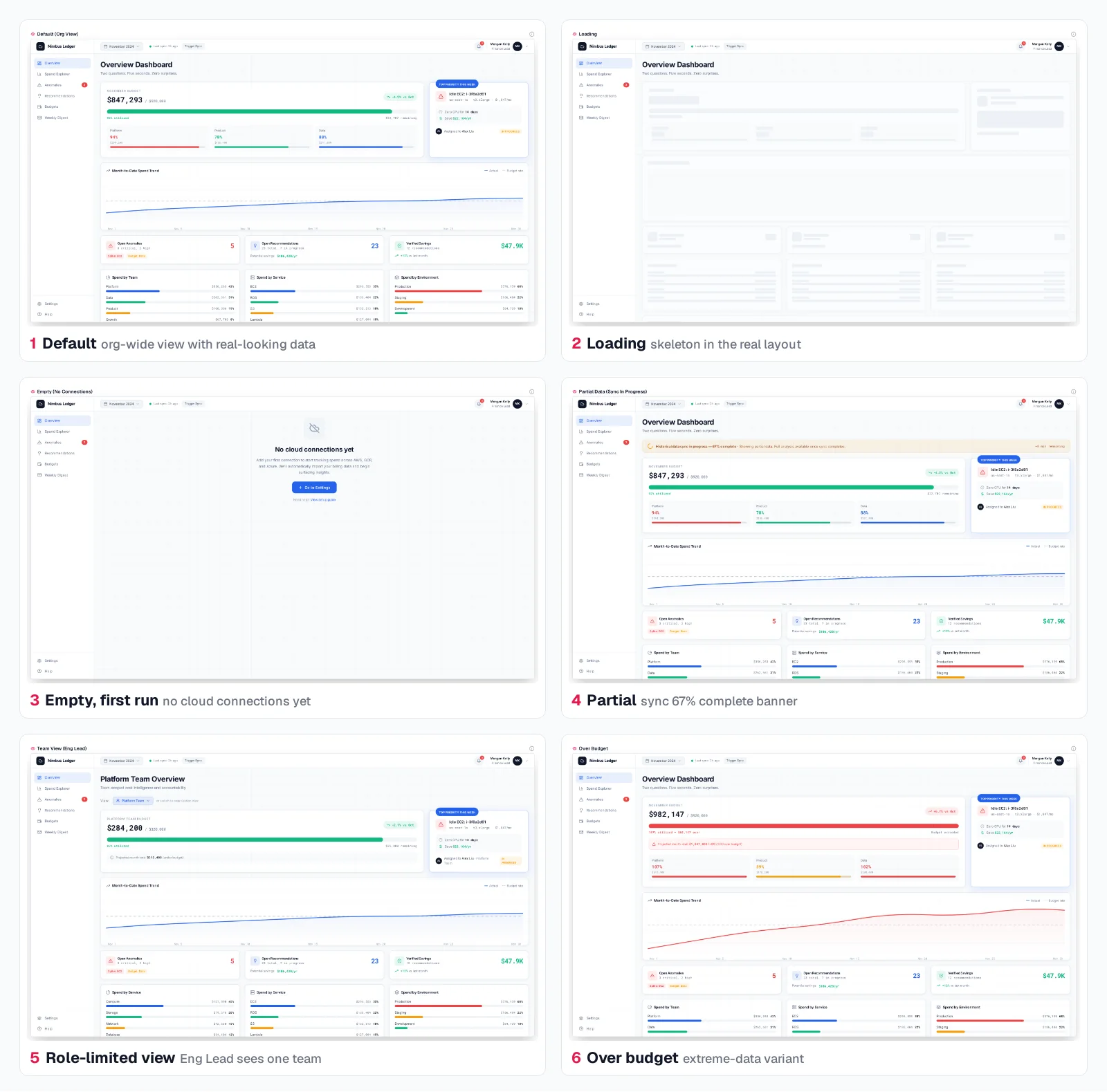
Caption: One screen, six states, from a prompt that never mentioned states. Mowgli cloud cost dashboard demo, October 2026.
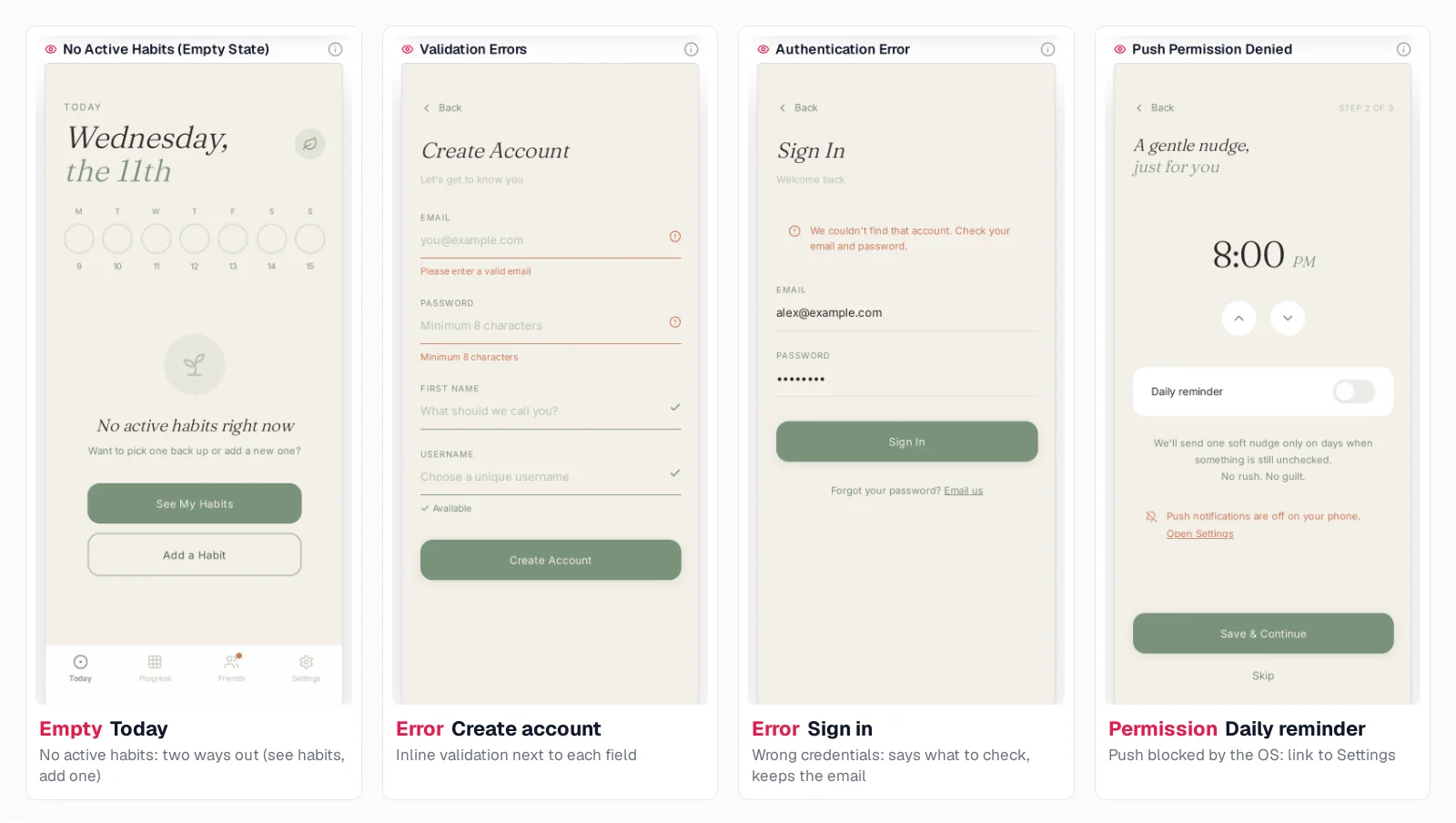
Caption: Empty, error and permission states from the Mowgli habit tracker demo (12 screens, 46 states), October 2026.
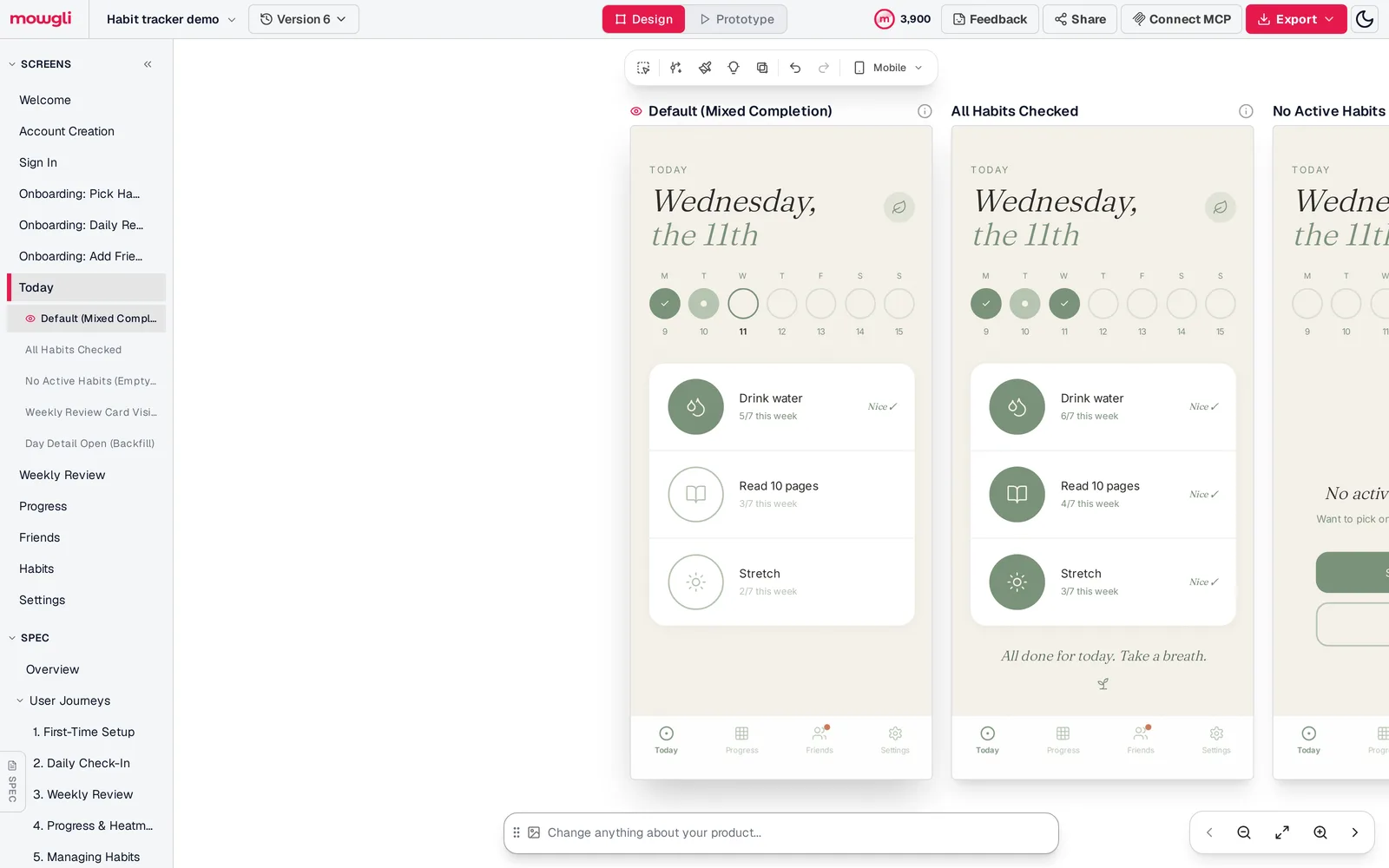
Caption: Each screen's states in the sidebar and side by side on the canvas: one row of the matrix. Captured October 2026.
Tools that can include UI states during design
Coding agents add states when instructed. The design-tool descriptions below use claims from their own product pages.
Prices are from each vendor's pricing page, October 2026.
| Tool | States without being asked? | Output | Free option | Paid from |
|---|---|---|---|---|
| Mowgli | Yes, derived from the product spec | Design canvas, React + Tailwind, Figma, MCP | Free to start (300 credits) | Credit packs from $12; plans from $15/mo |
| UXMagic Flow Mode | Claimed: "interprets screens, states, and transitions" | Figma, HTML/React/Tailwind | 20 credits/day | $35/mo |
| UX Pilot | Claimed for Max Web Design: "states, and product edge cases" | Figma, code, GitHub sync | 80 credits/day | $19/mo yearly |
| Figma's agent | No: one state per request, in your design system | Figma frames | Paid plans | $16/mo Full seat |
| Lovable, Bolt, v0, Cursor, Claude Code | Only when prompted | Running code | Varies | Varies |
Mowgli - whole multi-screen products from a spec
This is the option for designing every screen and state before implementation, with the product spec and design kept together.
UXMagic Flow Mode - editable multi-screen flows
UXMagic says Flow Mode "interprets screens, states, and transitions" and proposes a screen list before generation. It exports to Figma, HTML, React or Tailwind. The free tier allows up to 3 screens a day with 20 credits per day. Pro costs $35/mo or $17.50/mo billed yearly. Its product page does not enumerate the state set generated per screen.
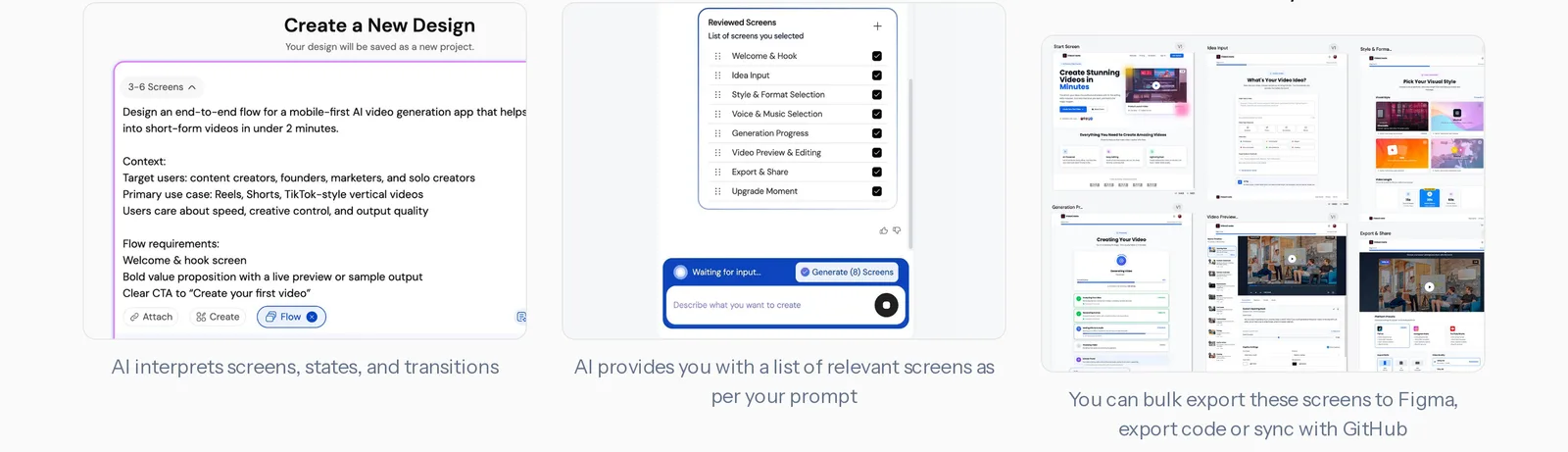
Caption: Source: UXMagic website, captured October 2026.
UX Pilot - states in Max Web Design
UX Pilot says Max Web Design can "Add depth, states, and product edge cases automatically," while Autoflow can "Generate every screen in the UX journey." It supports exploring several looks, Figma export and GitHub code sync. The free option includes 80 credits per day. Paid plans start at $19/mo yearly. Its product page does not enumerate which states Max Web Design adds.
Figma's agent - requested states in an existing design system
Figma's agent creates requested empty, loading and error variants from team components and tokens. It fits Figma teams that need exact library consistency. It handles one state per request and does not automatically audit for missing states.
It is available on paid plans. A Full seat costs $16/mo. Since October 6, 2026, the agent uses AI credits.
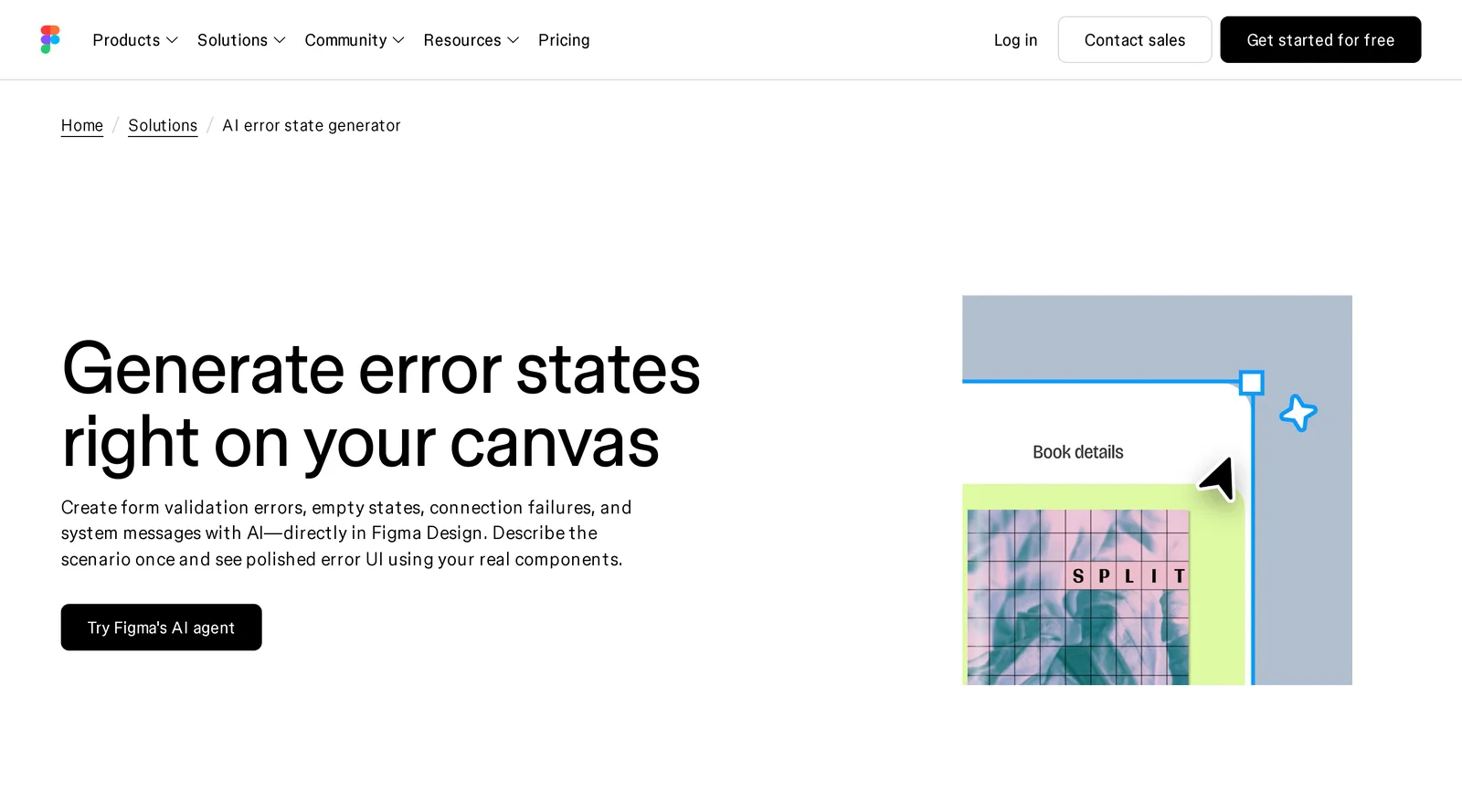
Caption: Source: Figma website, captured October 2026.
Choose the right workflow for your situation
For an existing Lovable or Bolt app, save the rules, run the audit and begin with the three most-used screens.
For Cursor or Claude Code, add the relevant rules file and review the /states gallery before merging. For a Storybook-based UI, generate the contact sheet.
For a Figma team with an established library, use the checklist as the audit list and request individual variants through Figma's agent.
For an unbuilt product, use Mowgli's app screen workflow to derive the screen-and-state system before handoff. If an existing app also needs a visual redesign, run the manual audit first, then redesign every screen and state together. Read the vibe-coded app redesign workflow for the full process.
Verdict
For an existing product, persist the rules, audit every route, repair one screen at a time and require a visible state preview before merge.
For an unbuilt product, design the states before implementation. Mowgli can create the synchronized spec, screens and states for handoff to Claude Code, Codex, Cursor or another coding agent.
Next, review complete B2B SaaS screens, AI design for complex apps, the habit-tracker screen example, or the Mowgli MCP connection.
FAQ
What states does each app screen need?
Every screen needs default and long-content checks. Add loading and error for fetched data, empty variants for collections and filters, partial for multiple sources, permission denied for gates, success for mutations and offline where connectivity can fail.
How do I find missing loading, empty and error states?
List every route, answer the seven applicability questions and build a screen x state matrix. Score each screen as existing applicable states divided by all applicable states. Require a frame, story or working preview before marking a cell designed.
Why does my Lovable app have no loading or empty states?
Lovable implements the conditions you describe, and its guide asks authors to define empty, loading and failure behavior. Put the rules in Project Knowledge, audit in Plan mode and repair one screen per message.
What is the difference between an empty state and an error state?
An empty state means the request succeeded but returned nothing, while an error state means the operation failed. An empty state should explain the absence and provide a useful first action. An error should explain the problem, preserve input and offer recovery. Never show an empty state after a failed request because it can imply that user data disappeared.
How do I view every screen state in one place?
Use a linked screen x state matrix, a Storybook contact sheet or a development-only /states gallery. In Mowgli, you can view a screen's states together on the canvas.
Which AI design tool generates empty, error and loading states?
Mowgli derives states from the product spec and designs them with the complete multi-screen product. UXMagic Flow Mode and UX Pilot make vendor claims about states, while Figma's agent produces states requested individually. Compare them by job and verify competitor prices against the cited October 2026 pricing pages.
Sources
- Lovable prompting guide
- Lovable Knowledge
- Bolt context management
- v0 instructions
- Cursor rules
- Claude Code memory
- Storybook test runner integration
- Mealdrop repository
- Mealdrop Storybook
- UXMagic Flow Mode
- UXMagic pricing
- UX Pilot
- UX Pilot plans
- Figma AI error-state generator
- Figma AI empty-state generator
- Figma AI loading-state generator
- Figma AI credit updates
- Figma pricing
- Progress indicators
- Skeleton screens
- Empty-state interface design
- Error-message guidelines
- Carbon loading patterns
- GOV.UK error messages
- Offline UX guidelines
- Permission best practices
- MDN Navigator.onLine
- WCAG status messages
- Mowgli
- Mowgli app
- Mowgli pricing
- AI design generation
- App screen generator
- Lovable prompt tool
- Vibe-coded product redesign
- Real copy, not lorem ipsum
- Claude Code UI design workflow
- Redesign a vibe-coded app
- Complete B2B SaaS design screens
- AI design for complex apps
- Habit-tracker app screens
- Mowgli MCP