How to Use AI to Redesign an Existing App
Start with screenshots, Figma or code; audit the current app, explore directions, redesign every state, test with users and ship one flow at a time.
Use the artifact that most accurately represents your current product. Start from screenshots when they are all you have, from Figma when its components and frames match production, or from the codebase when implementation is the real source of truth.
Then follow seven steps: choose that source, audit the current experience, set a metric, explore several visual directions, redesign complete flows and states, test old against new, and release one flow at a time. This keeps AI focused on demonstrated problems instead of turning the redesign into an uncontrolled rewrite.
The short answer: choose the source of truth first
Screenshots require the least preparation. They preserve visible layout, content and styling, but not components, tokens, logic, data, hover or focus behavior, or hidden states.
A Figma file is better when design maintains an accurate product file. It preserves components, variables, naming and designed states. Compare it with the live product before starting because engineering-only screens and edge cases may be missing.
The codebase is best when implementation is the most accurate record. It preserves routes, real components, data shapes and coded states. You still need a separate design target or canvas where you can compare alternatives without immediately changing production components.
Use a narrow screenshot or Figma-to-prototype tool for one screen or concept. Use a system-level workflow when several flows or the whole app must change together.
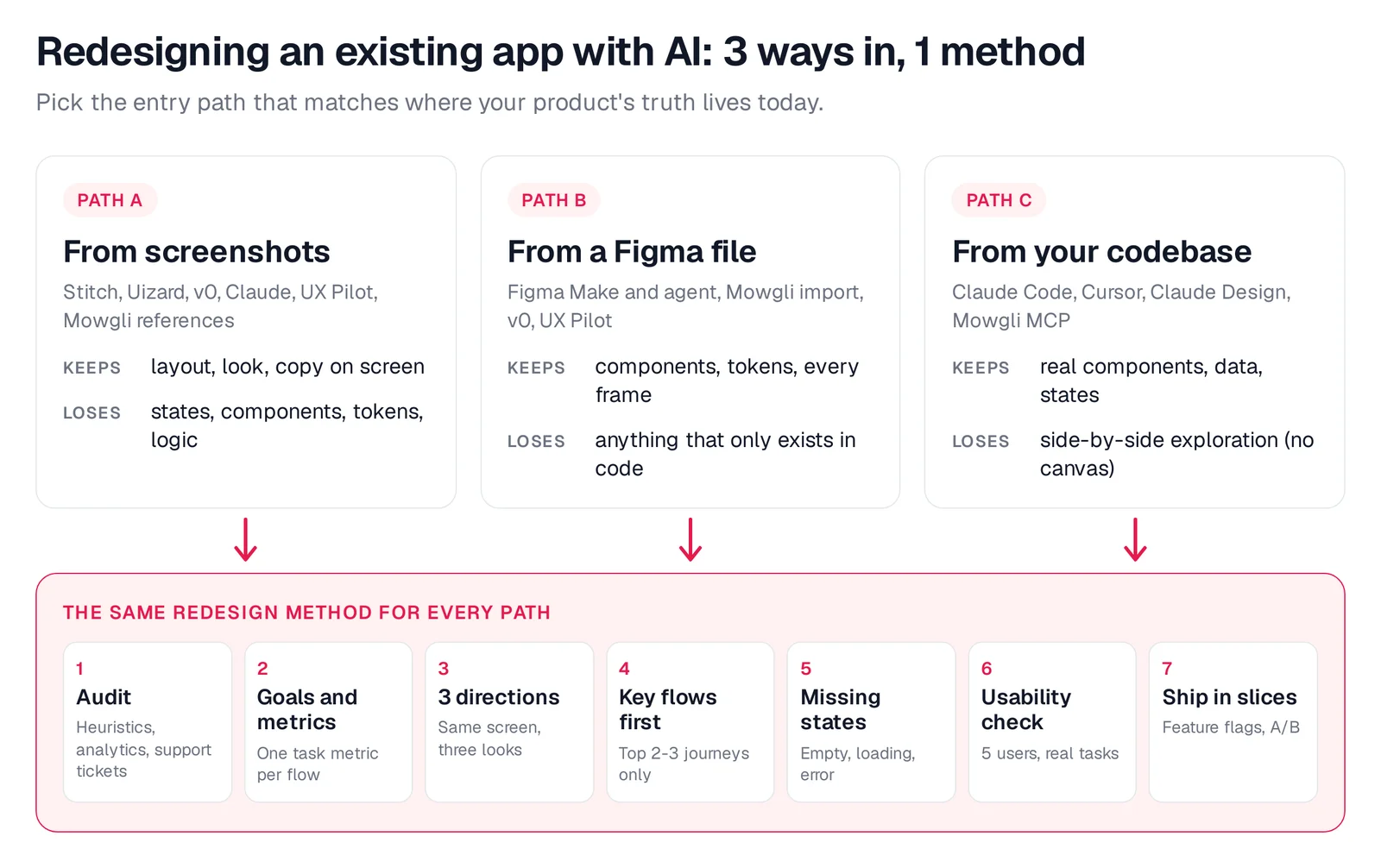
Caption: Three ways in, one method. Original diagram by Mowgli.
If the app began in Lovable or Bolt, use the same method. The separate guide to redesigning a vibe-coded app without rebuilding it covers that case in detail.
Audit the current app before redesigning it
Inspect every affected flow before prompting an AI tool. Review it against Nielsen's 10 usability heuristics, funnel analytics and support tickets from the last 90 days.
Rank each finding with NN/g's 0-4 severity scale. This separates cosmetic issues from problems that block important tasks. Treat findings generated by AI as hypotheses that your team must review, not established facts.
Use this prompt with an ordered set of current screens:
You are reviewing screenshots of a live [app type] used by [audience].
For each screen, list usability problems against Nielsen's 10 heuristics.
For each problem give: screen, heuristic, what you see, severity 0-4, a one-line fix.
Then list states that are visibly missing (empty, loading, error, permission, offline).
Do not suggest visual restyling yet.
Set one measurable goal for each flow
Choose one metric before changing the interface. The HEART framework organizes metrics around Happiness, Engagement, Adoption, Retention and Task success.
A checkout redesign might target checkout completion rate. An onboarding redesign might target time to first habit created. Record the baseline so you can compare the released flow with the old version.
Also document what must remain unchanged: routes, labels, legal copy and product behavior. Change them only when the audit identifies a reason.
Explore directions before redesigning every screen
Choose one representative flagship screen and generate at least three meaningfully different directions. Compare them side by side before selecting a system for the rest of the product.
In an NN/g parallel-design study, the combined design scored 70% higher in usability than the average original. One additional iteration raised the result to 152%.
This step is about selecting a direction, not collecting small variations of the same layout. The guide to using AI tools to explore visual styles provides a focused workflow.
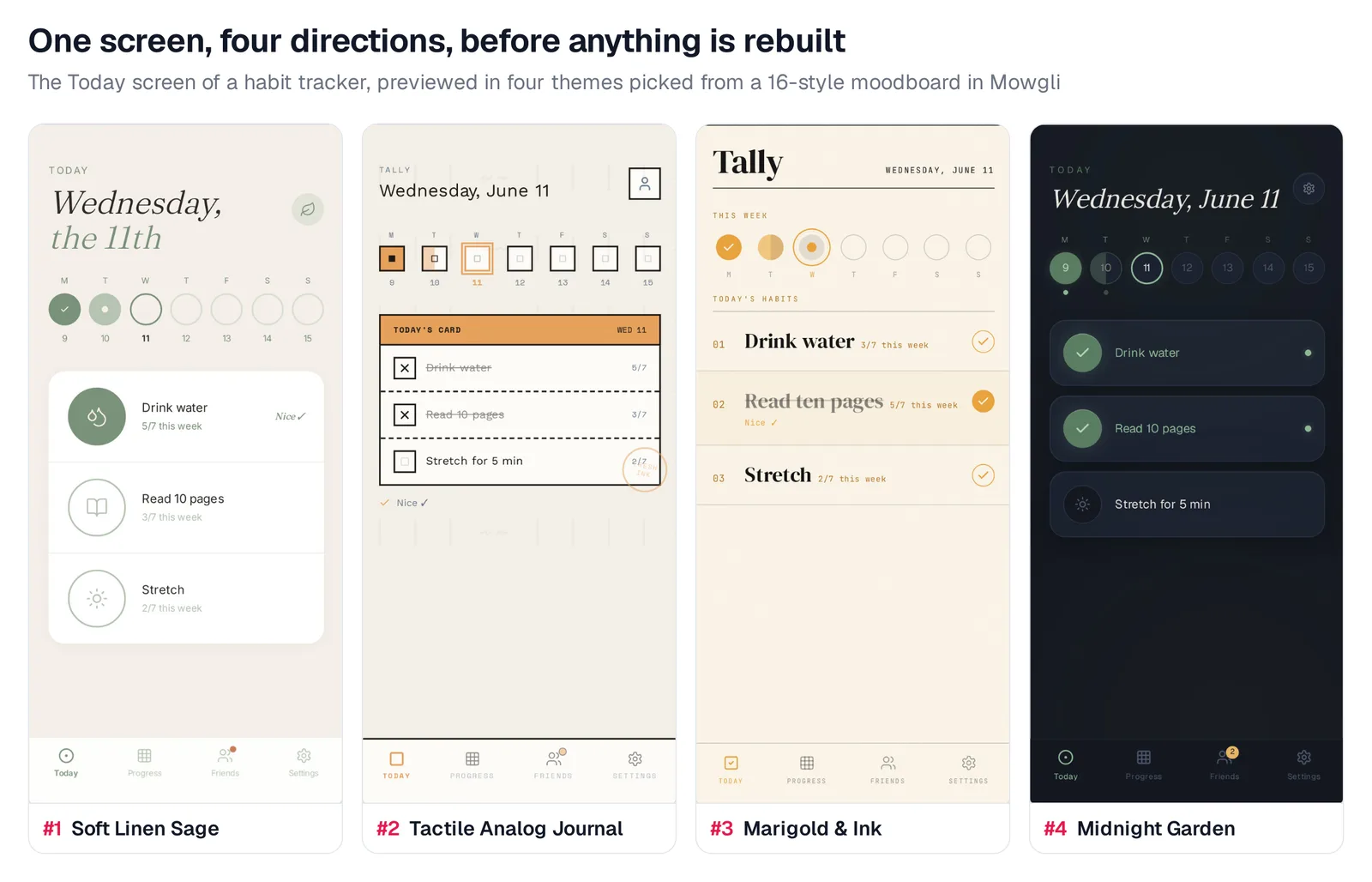
Caption: One screen, four directions, compared before any flow is redesigned. Habit tracker demo in Mowgli.
Redesign complete flows, including every state
Prioritize the two or three journeys carrying most traffic or revenue. Redesign each journey end to end instead of polishing disconnected screens.
Preserve the information architecture unless the audit identifies a structural problem. NN/g's guidance is direct: "Never make radical changes when minimal adjustments will suffice."
Inventory every default, empty, loading, error, permission and offline state, plus edge cases specific to the flow. A screen and state checklist helps expose omissions before implementation.
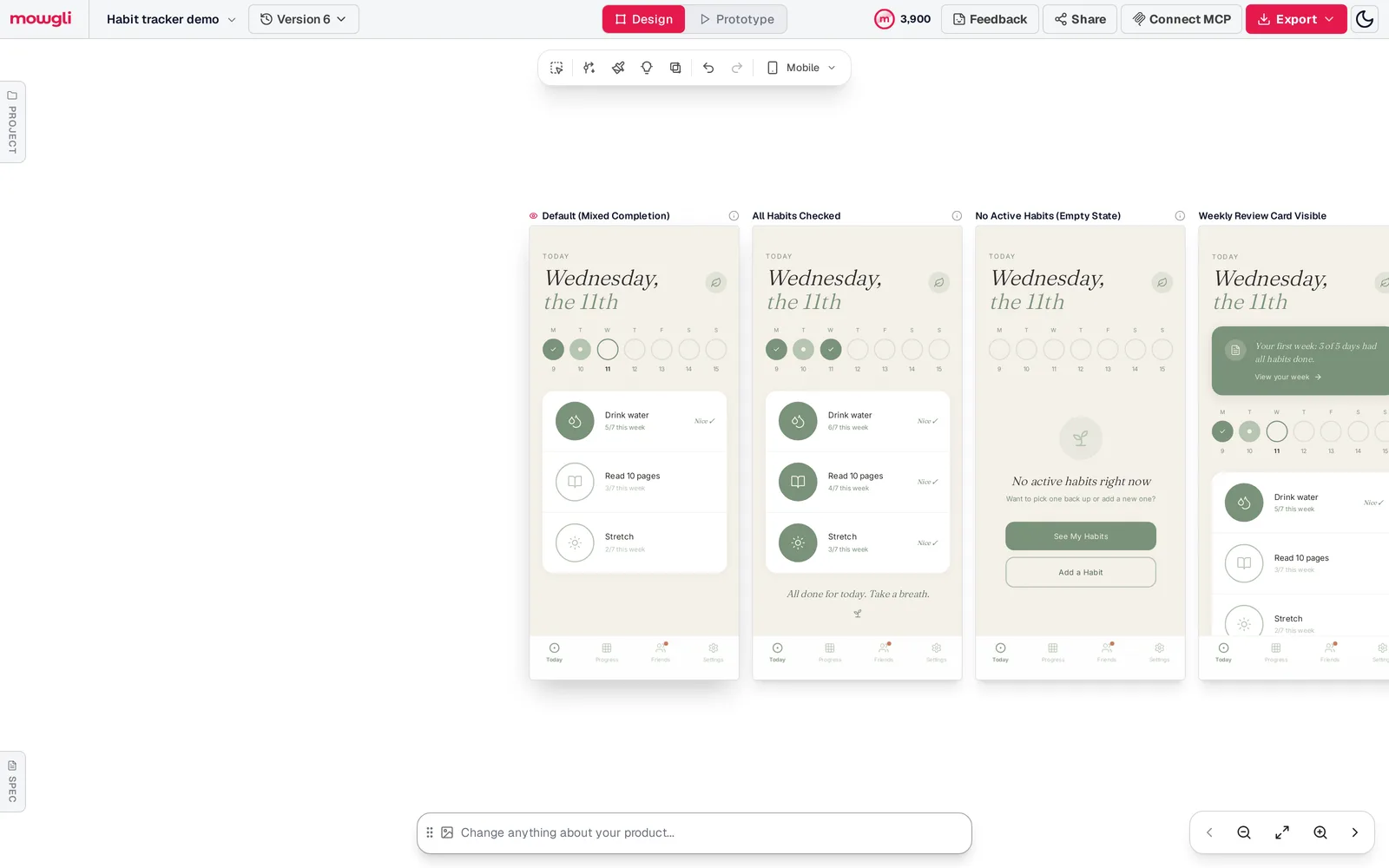
Caption: One screen, four states, all designed before handoff.
Test with users and ship in slices
Test the same three tasks on the old and redesigned versions with five target users. NN/g reports that five participants find about 85% of usability problems and recommends three rounds of five over one round of fifteen.
You can test with a Figma prototype, a v0 preview or Mowgli prototype mode. Compare task completion and the flow metric you recorded earlier.
Release one flow at a time. Put each flow behind a feature flag, use a percentage rollout and run an A/B test against the earlier metric. Users often "just want to get things done," so change demonstrated problems while retaining familiar patterns elsewhere.
Path A: redesign from screenshots
Choose screenshots when the live app is accessible, no accurate Figma file exists, or the code cannot be shared.
Capture every screen in each target flow at actual user viewport sizes. Trigger hard states such as empty results, slow loading and failed payments. Name files in sequence, such as checkout-02-payment-error.png, and list everything that must remain unchanged.
These are screenshots of our live [app type] for [audience], in flow order.
Keep: the navigation structure, every field and label, brand color [#hex].
Change: visual hierarchy, spacing, typography and component styling.
Goal: [one metric, e.g. fewer drop-offs on the payment step].
Redesign screens 1-[n] as one consistent set. Do not add features.
List any state (empty, loading, error) that is missing from what I uploaded.
Compare the originals and outputs side by side. Verify every field, action and state. Image references can guide layout and colors, but generated output may differ from the original.
Prices are from each vendor's pricing page, October 2026.
- Google Stitch supports screenshots and rough wireframes, produces matching UI that can be pasted into Figma, and can extract a design system from any URL. It is free with a daily credit limit. See the Google Stitch comparison.
- Uizard Screenshot Scanner turns a screenshot into an editable mockup with drag-and-drop editing. Free includes 3 AI generations per month; Pro is $12 per month billed yearly. See the Uizard comparison.
- v0 analyzes screenshot layout, colors and components, then produces React and Tailwind. It offers free credits; Plus is $30 per user per month.
- Claude Design captures elements from a live website. It fits teams already paying for Claude. Claude Pro is $20 per month and up.
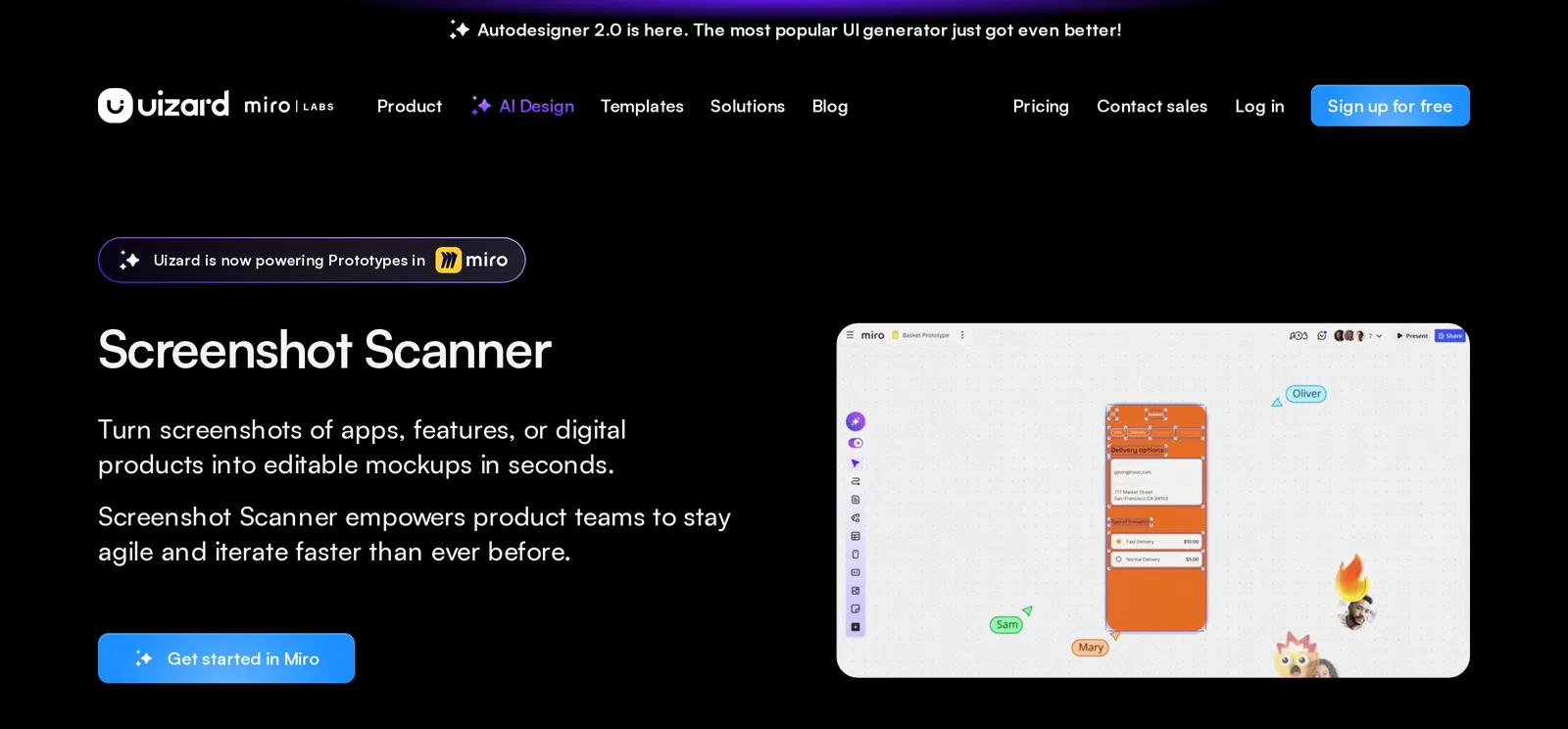
Caption: Uizard's Screenshot Scanner page. Source: Uizard website, captured October 2026.
Path B: redesign from a Figma file
Choose this path when components, variables and frames in Figma reflect the product.
Prepare one curated page per flow. Use clear frame names such as Checkout / Payment / Error, retain library components instead of detached copies, and compare the file with the live app. Give the AI explicit constraints, permitted changes and one goal metric.
Figma agent handles in-file layout edits, component-variant switching and bulk content edits across frames. It requires a Full seat.
Figma Make builds a working prototype from attached layers, components or frame links, with up to 10 files per prompt. Professional costs $16 per month per Full seat. See the Figma Make comparison.
v0 can read pages, frames, variables, components and assets from a Figma link, then build the screens as one app. Its Figma integration is available on paid v0 plans.
Return approved work to Figma for team review.
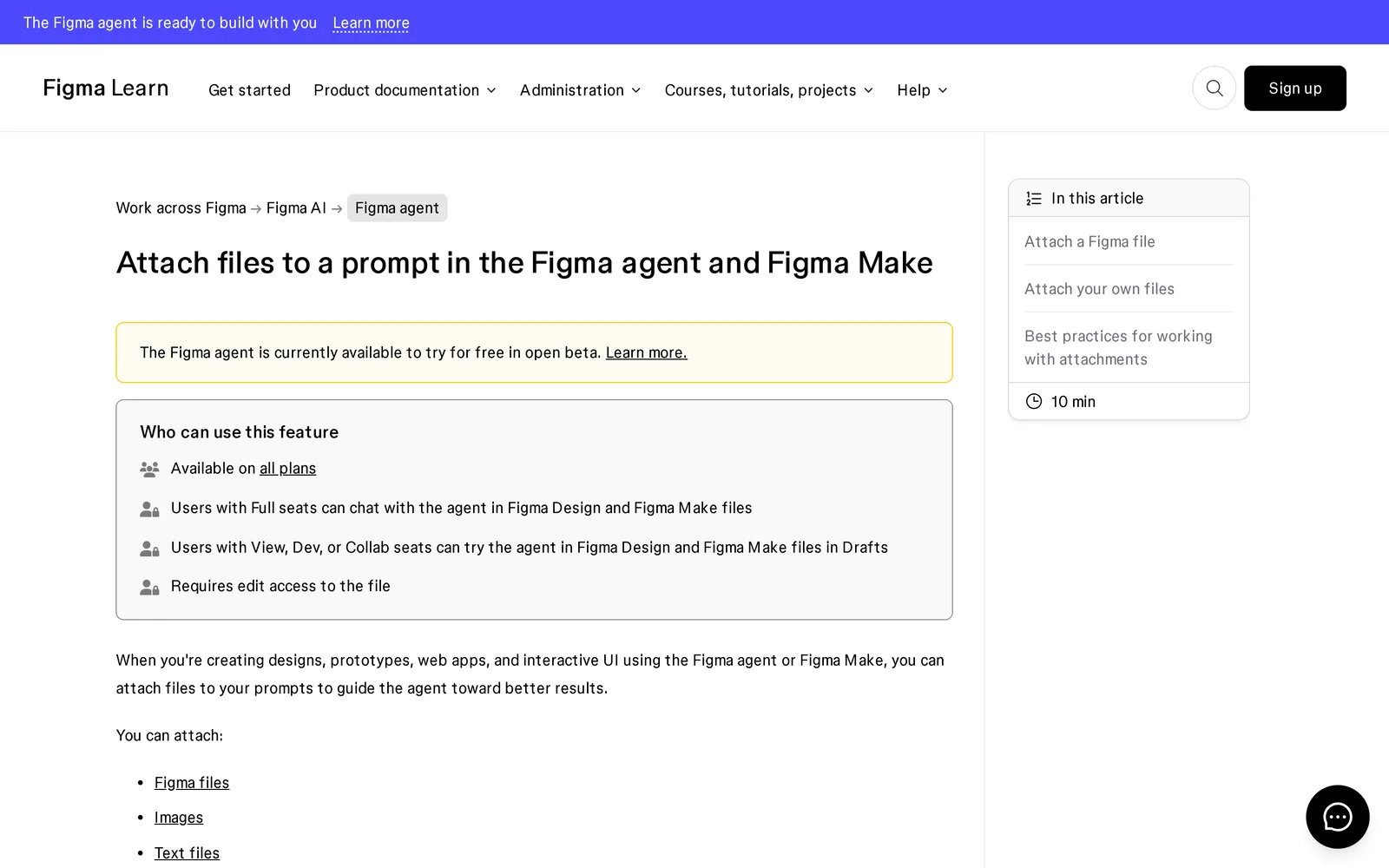
Caption: Figma's guide to attaching designs and files to agent and Make prompts. Source: Figma website, captured October 2026.
Path C: redesign from the codebase
Choose the codebase when it contains the most accurate routes, components, data and states, and engineering will implement the redesign.
Store constraints where the coding agent reads them: CLAUDE.md for Claude Code, or .cursor/rules/*.mdc and AGENTS.md for Cursor.
---
description: Redesign rules for app UI
globs: src/**/*.tsx
alwaysApply: false
---
- Use only tokens from src/styles/tokens.css. No raw hex values, no new font sizes.
- Reuse components from src/components/ui before creating new ones.
- Every list, table and async view ships with empty, loading and error states.
- Do not change routes, data fetching or copy unless the task says so.
- One flow per branch; keep the old screen behind the flag redesign_<flow>.
Explore directions before editing production components. Claude Code /design, released as a research preview in August 2026, produces editable artboards. An example command is /design redesign the composer based on what people actually use it for.
Cursor Design Mode lets you click, draw or describe changes by voice in its built-in browser, including multi-select across elements.
Implement one flow per branch. Retain the old flow behind its feature flag, provide target screenshots for every state and verify the implementation against them. Claude Code starts with Claude Pro at $20 per month. Cursor Pro is $20 per month.
For deeper implementation workflows, see the guides to design rules for coding agents, Claude Code UI design and getting designs into Cursor.
Where Mowgli fits: redesigning the whole product
We make Mowgli.
Mowgli fits when several flows or a whole product need to be redesigned together. It starts from an existing Figma product or codebase and keeps every screen, state and direction visible on one infinite canvas.
A guided questionnaire becomes a synchronized product spec covering user journeys, constraints and the data model. You can explore 16+ moodboard styles, steer the style, and generate 30+ screens and states. Chat iteration, image references, version history and interactive prototypes support review.
With Figma, you can import multi-frame files or whole products, edit and add screens within the existing system, then export selected screens through the plugin. See the Figma import workflow and Figma import feature.
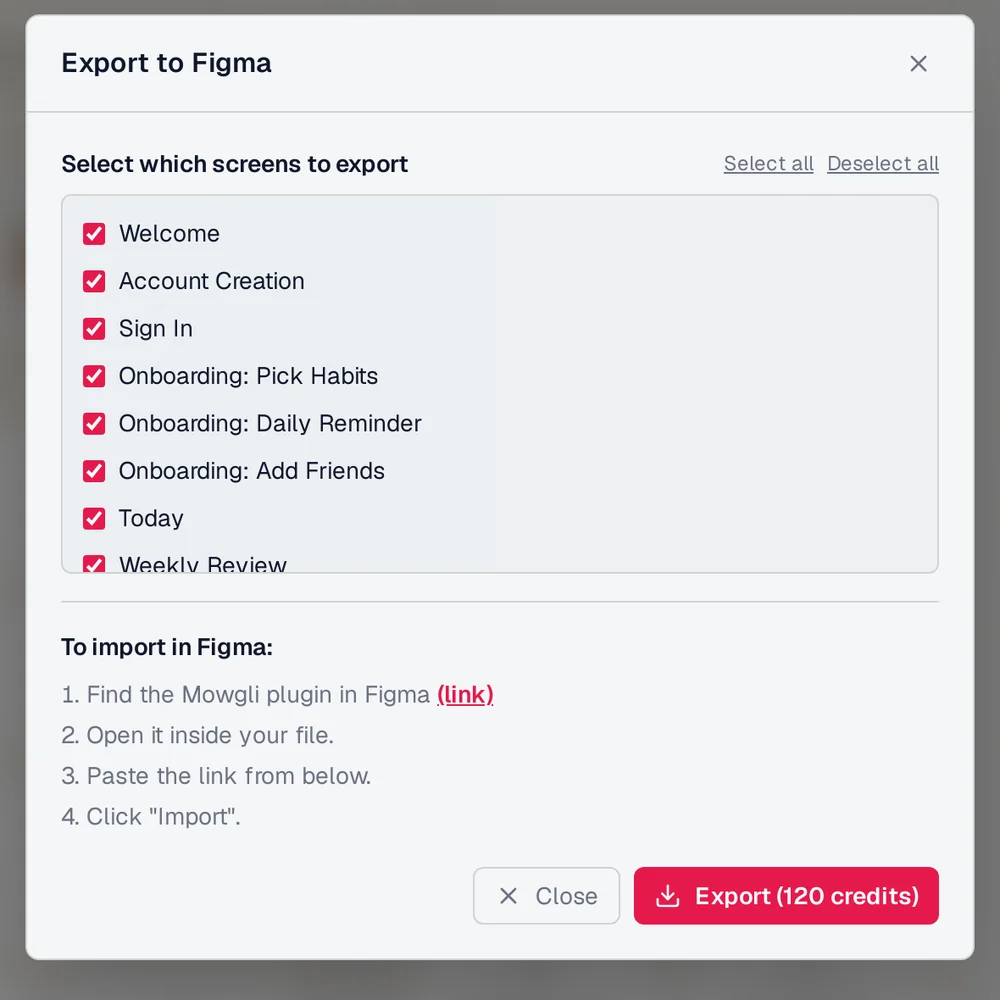
Caption: The round trip back to Figma: pick screens, then import them with the Mowgli plugin.
For code, connect Claude Code, Codex, Cursor or another coding agent through the agent skill, MCP server or mowgli-cli. Install the skill with npx skills add mowgli-ai/skills.
The coding agent can import an existing codebase into editable designs and pull approved designs back into code. A project is exposed as SPEC.md, frontend.xml and one <ScreenId>.tsx file per screen. Mowgli's MCP server, CLI and agent skill let coding agents read every screen, its states and the product spec, then push code changes back into the design.
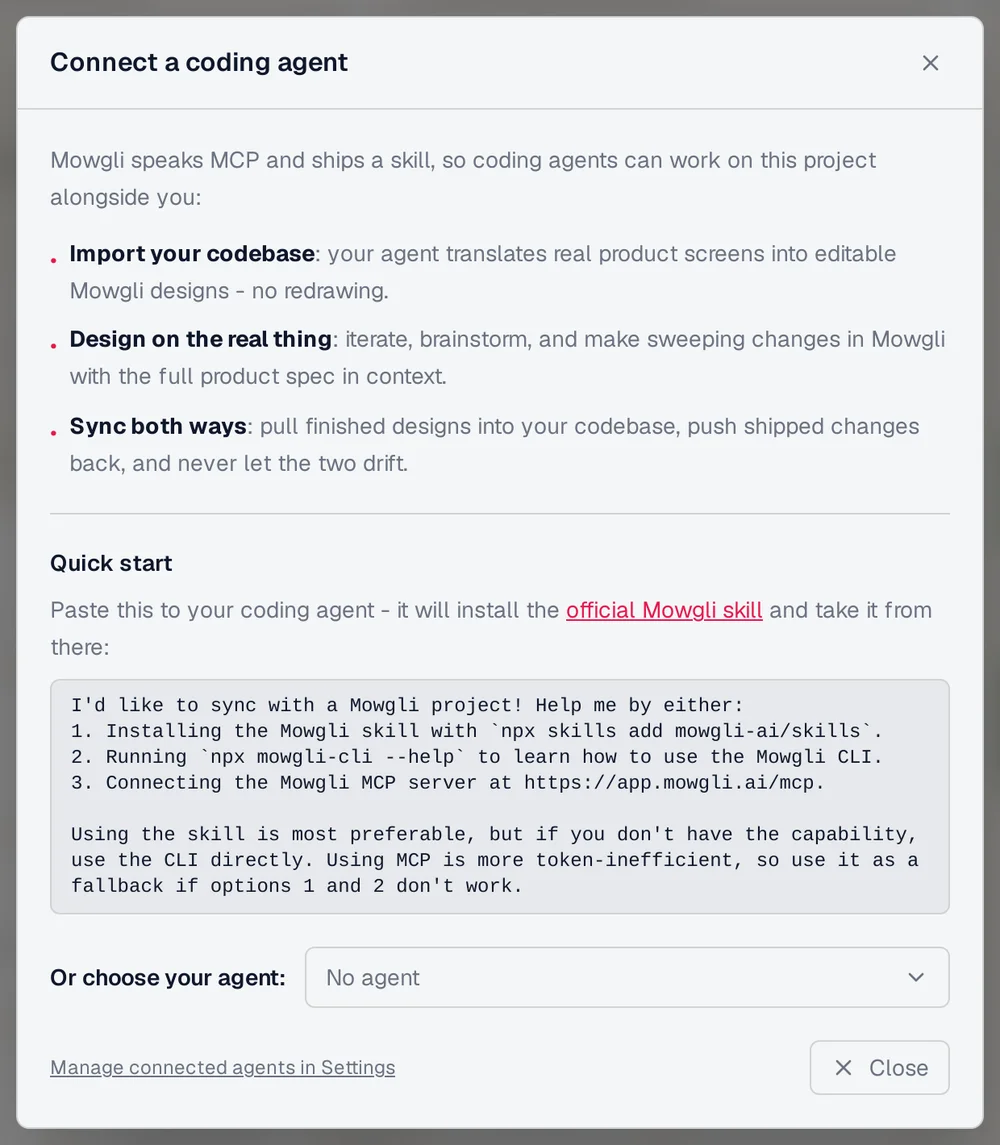
Caption: One prompt connects Claude Code, Codex or Cursor to a Mowgli project.
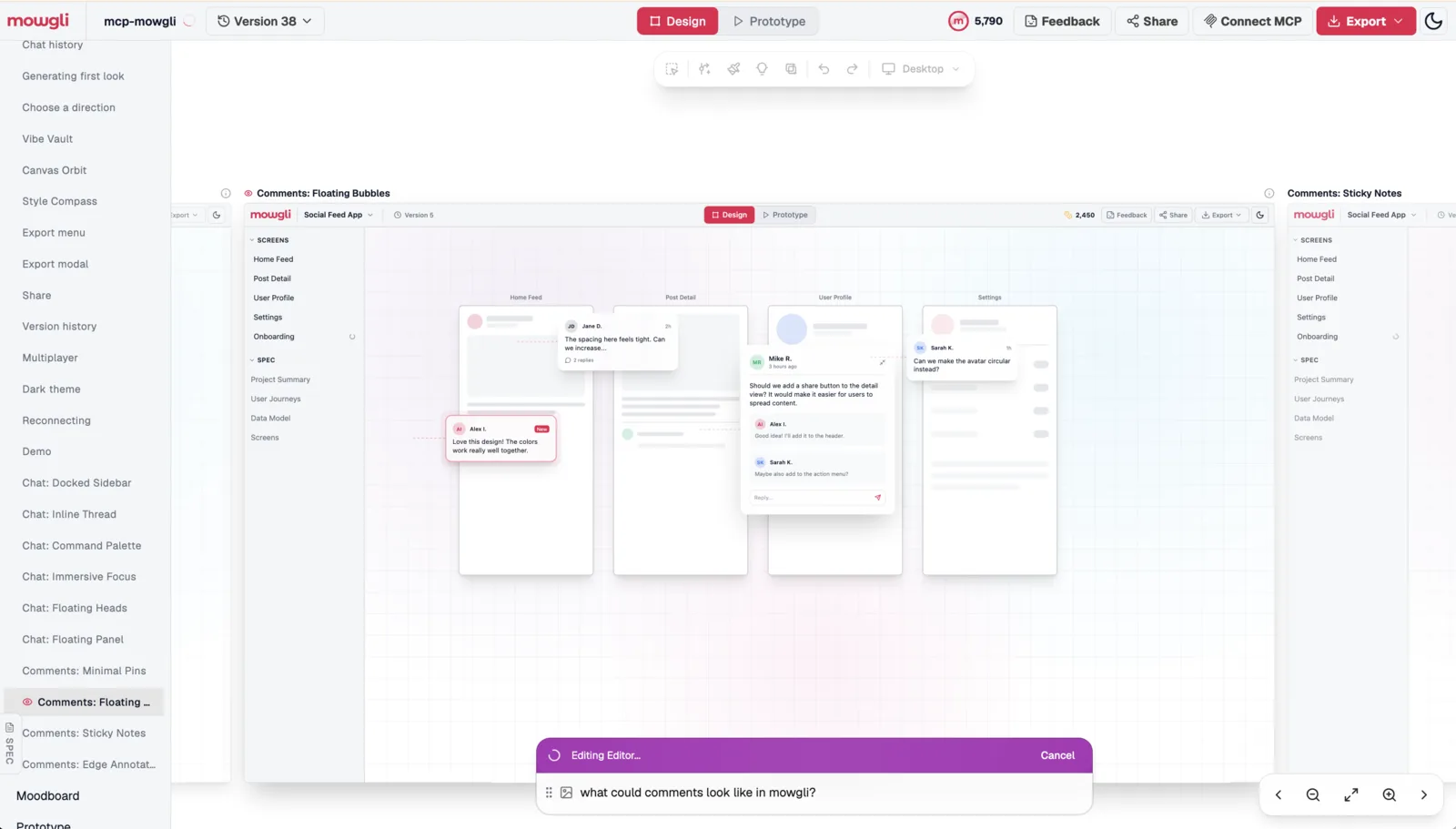
Caption: Mowgli's own codebase pushed into Mowgli, exploring comment designs as side-by-side variants before any code changed.
Screenshots, logos, brand sheets and photos can steer the visual direction. The visual-reference guide explains how to prepare them.
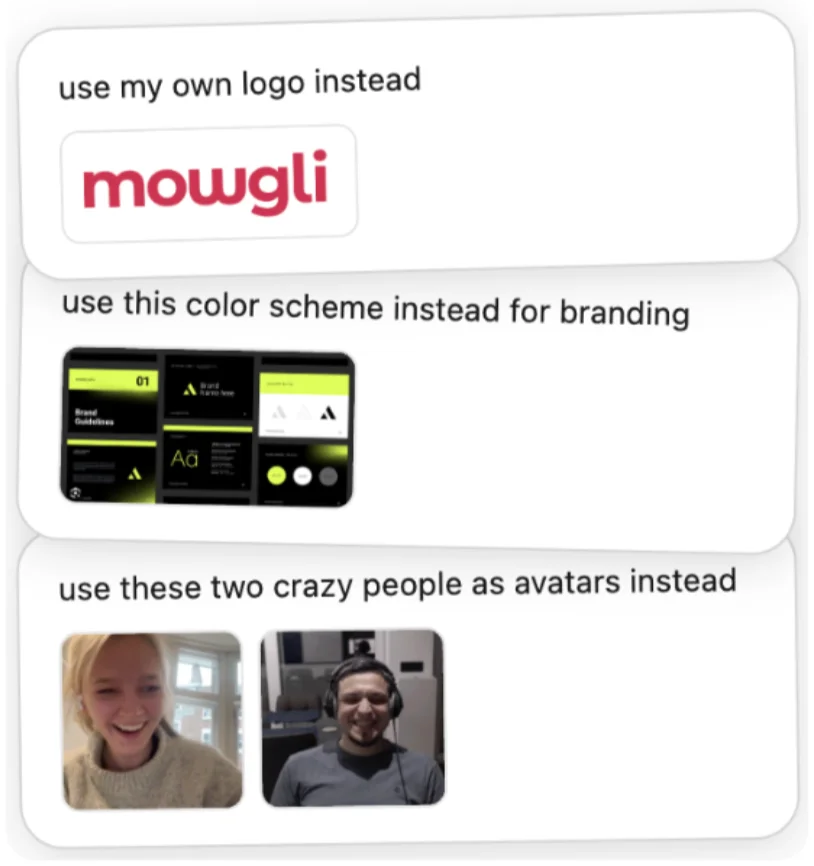
Caption: In Mowgli, a logo, brand sheet or photos steer the design as references.
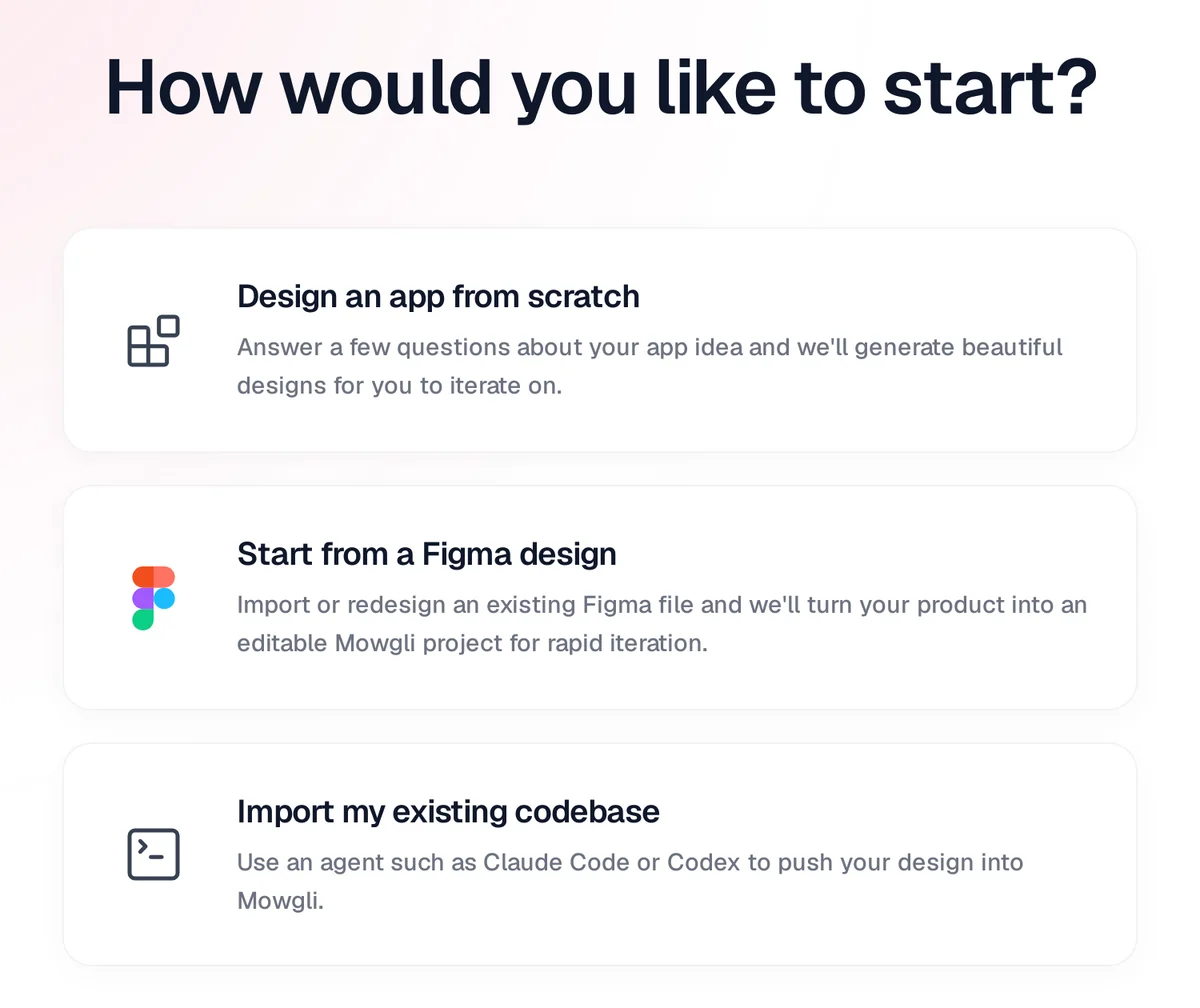
Caption: Mowgli's starting points: from scratch, from Figma (path B) or from your codebase (path C).
Exports include native Figma and React with Tailwind. Each screen is a component, icons use lucide-react, and a single state prop switches between states.
Mowgli designs and prototypes; to host and ship, you hand off to a builder or coding agent (Claude Code, Codex, Cursor, Lovable).
Free to start (300 credits); credit packs from $12; plans from $15/mo. Start with the app redesign tool or review the coding-agent connection.
Verdict: choose by job
Choose Mowgli for a whole product or several flows when you need Figma or codebase input, every screen and state on one canvas, and two-way handoff with Claude Code, Codex, Cursor or another coding agent.
Choose Google Stitch for free screenshot-based concepts, Uizard for screenshot-to-editable mockups, and v0 for screenshot or Figma-to-React prototypes.
Choose Figma agent when an accurate Figma file should remain inside Figma. Choose Figma Make when you want a working prototype from that file.
Choose Claude Code or Cursor when code is the source of truth. Give either one written constraints, explicit target designs and one flow per branch.
FAQ
What is the best AI tool to redesign an app from screenshots?
Google Stitch is the best fit for free concept exploration, Uizard Screenshot Scanner for editable mockups, and v0 for React and Tailwind output. Screenshot tools preserve only visible UI, so use Figma or code when the redesign spans the whole product.
How do I redesign an existing app with AI without breaking it?
Audit first and document the routes, labels, tokens, components and behavior that must remain. Redesign one complete flow at a time, include all states, test against the existing version and release behind feature flags.
Can Figma AI redesign an existing Figma file?
Yes. Figma agent handles in-place frame, variant and content edits, while Figma Make creates a working prototype from attached frames and components. For a whole-product canvas with a synchronized spec, states and code handoff, import the product into Mowgli and export approved screens back to Figma.
Can Claude Code or Cursor redesign an app UI?
Yes. Store tokens and constraints in CLAUDE.md, .cursor/rules/*.mdc or AGENTS.md. Explore a target first, implement one flow per branch and verify every screen state against target screenshots.
How do I keep app designs and code in sync?
Choose one source of truth and define the handoff process. Mowgli's skill, CLI and MCP let Claude Code, Codex, Cursor or another coding agent push implemented screens into the design and pull approved designs into code.
How many users should test an app redesign?
Test with five target users performing the same three tasks on the old and new versions. Five participants find about 85% of usability problems, and three rounds of five are preferred over one round of fifteen.
Sources
- Google Stitch
- Google Developers Blog: Introducing Stitch
- Google Labs: Stitch updates
- Uizard Screenshot Scanner
- Uizard pricing
- v0 screenshot documentation
- v0 Figma documentation
- v0 pricing
- Claude Design
- Claude pricing
- Claude Code
- Claude Code August 2026 updates
- Figma file attachment documentation
- Figma agent documentation
- Figma Make
- Figma pricing
- Cursor rules documentation
- Cursor Design Mode improvements
- Cursor pricing
- Nielsen's 10 usability heuristics
- Rating the severity of usability problems
- Parallel and iterative design
- Radical versus incremental redesign
- Why usability testing needs five users
- A/B testing guidance
- Familiarity in redesigns
- Google HEART framework research
- Feature toggles
- Mowgli agent skill
- Mowgli MCP server
- Mowgli pricing
- Figma import
- Mowgli MCP
- Moodboards
- Prototyping
- Redesign your app
- Google Stitch comparison
- Uizard comparison
- Figma Make comparison
- Redesign a vibe-coded app
- Figma import workflow
- Screenshot visual references
- Mowgli MCP guide
- Why AI-built apps look the same
- Design rules for coding agents
- Claude Code UI design workflow
- Get designs into Cursor
- Explore visual styles with AI
- Design empty, error and loading states